
KENDO DropDownList control
Introduction
The KENDO JavaScript library is bundled with Sharperlight and provides a variety of web UI controls that can be combined with Sharperlight published reports to create various web interfaces. In this post, I will focus on using the kendoDropDownList control.
Additionally, the jQuery library is also bundled with Sharperlight.
There are three things to prepare:
- The HTML code (including JavaScript) in which the kendoDropDownList control is defined.
- A published report that acts as a container for the HTML code.
- A published report that provides a dataset to the kendoDropDownList control.
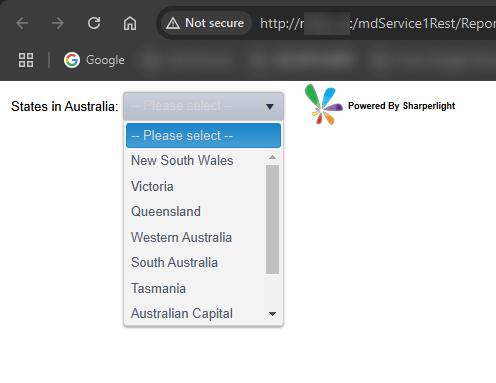
Practices
HTML code (including JavaScript code)
Header
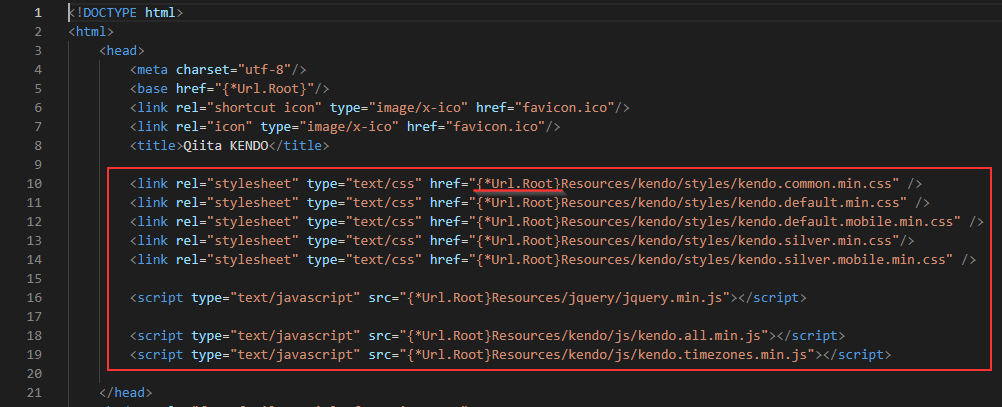
The reference to the Kendo JavaScript library and CSS styles are defined in the header section of the HTML code.
The specific Sharperlight tag “{*Url.Root}” is used and is replaced with the actual Sharperlight service URL at runtime.
Body
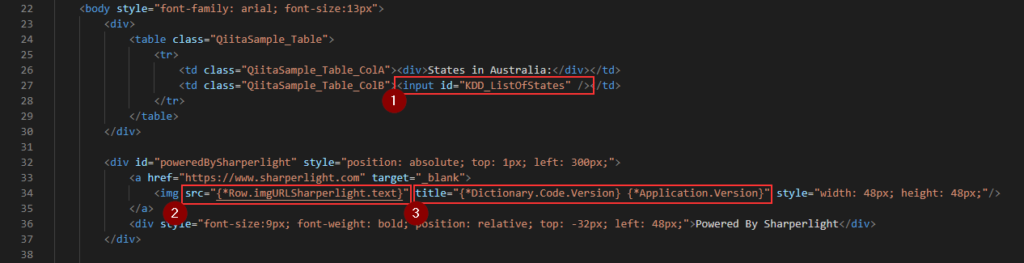
- This is where KENDO DropDownList control is created.
- This represents the URL for the Sharperlight logo. The actual URL is defined as an output item in the published query, which is the container of this HTML code. “{*Row.imgURLSharperlight.text}” is the reference code for the output item.
- These are Sharperlight-specific tags. “{Dictionary.Code.Version}” retrieves the translation of the word “Version,” and “{Application.Version}” retrieves the version of Sharperlight that is installed.
JavaScript
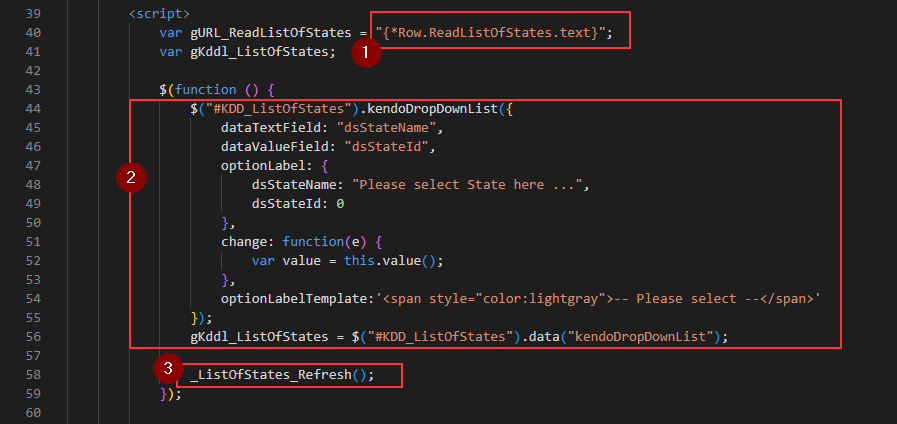
Here, we define the KENDO DropDownList control and call the data supply functions.
This is the query in the published report which is the container of the HTML code.
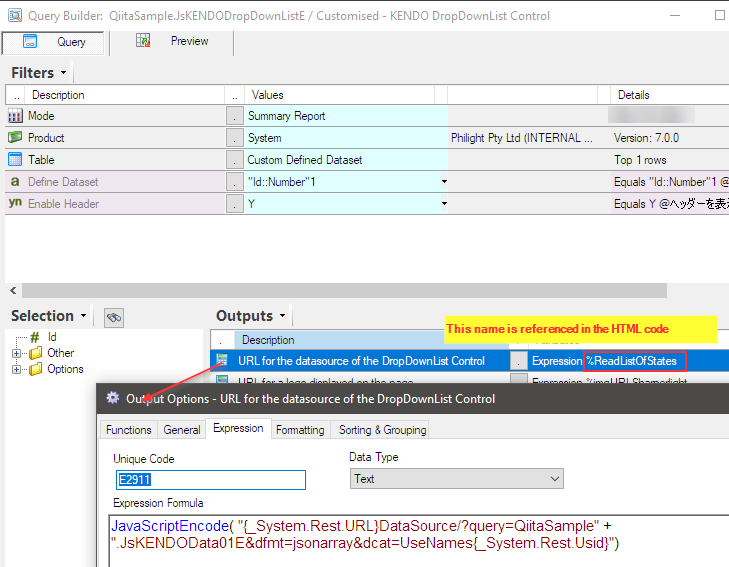
- The variable holds the URL to a published report. This published report can be used as an endpoint to feed the dataset to the DropDownList control. As you can see, the URL for the published report, serving as the endpoint, is defined with an expression in the query of the published report, which is the container of this HTML (+ Script) code.
- This is the code to configure the KENDO DropDownList Control.
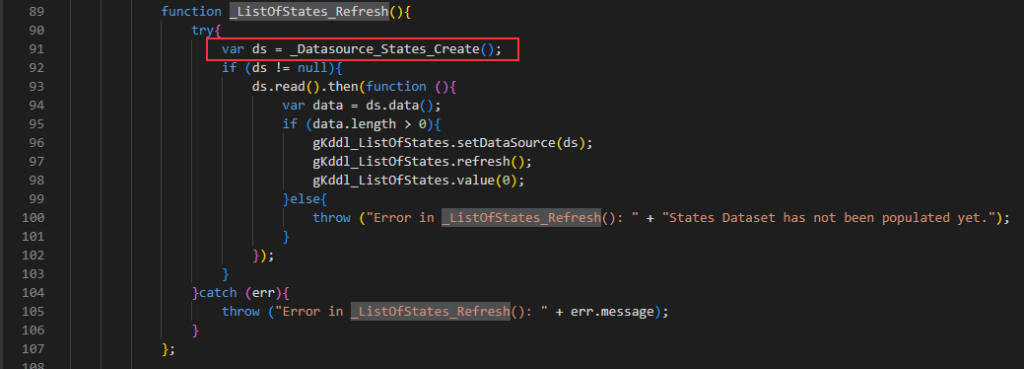
- This function creates a KENDO DataSource object and fetches a dataset from the endpoint by using it.
This is the body of the _ListOfStates_Refresh function. It calls a function that creates a Kendo DataSource object.
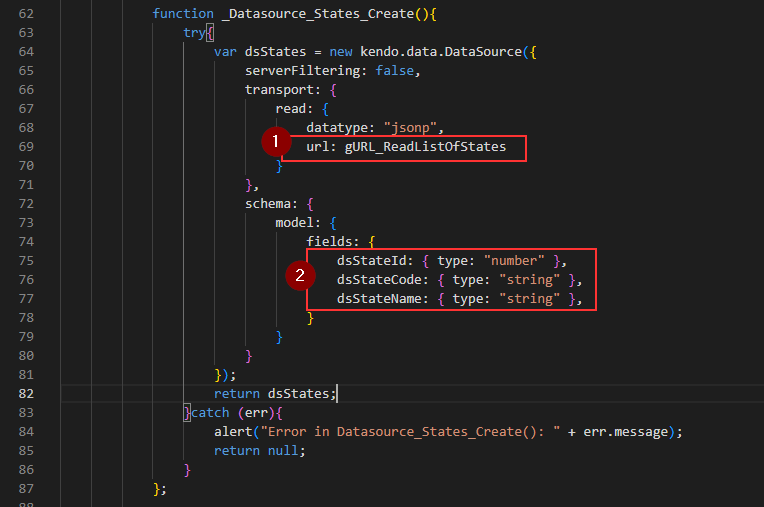
This is the body of _Datasource_States_Create function.
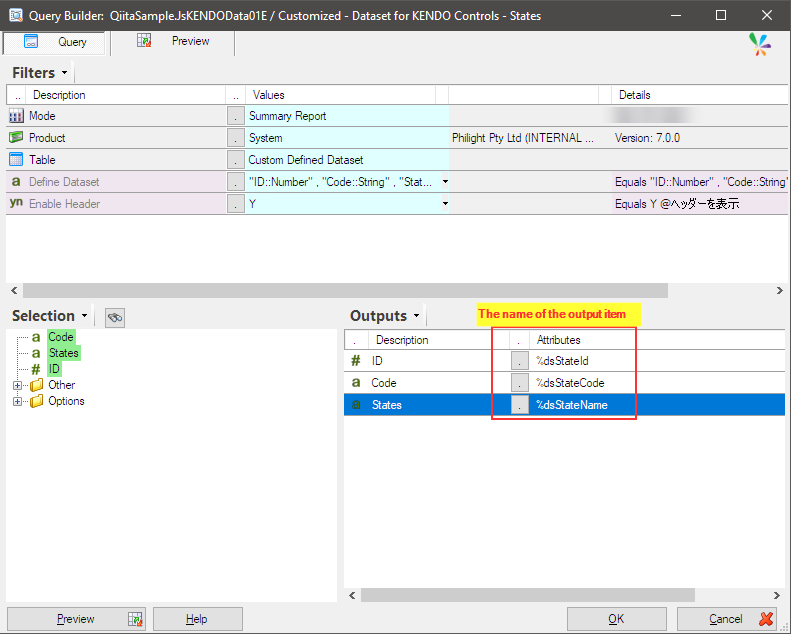
This is the query for the data source.
- Here, the URL of the endpoint is passed in. The endpoint returns the dataset as a JSON array, and it is specified to use the names of the output fields.
- The field name must be the same as the name of the output item in the query defined as the endpoint.
Here is the complete code.
<!DOCTYPE html>
<html>
    <head>
        <meta charset="utf-8"/>
        <base href="{*Url.Root}"/>
        <link rel="shortcut icon" type="image/x-ico" href="favicon.ico"/>
        <link rel="icon" type="image/x-ico" href="favicon.ico"/>
        <title>Qiita KENDO</title>

        <link rel="stylesheet" type="text/css" href="{*Url.Root}Resources/kendo/styles/kendo.common.min.css" />
        <link rel="stylesheet" type="text/css" href="{*Url.Root}Resources/kendo/styles/kendo.default.min.css" />
        <link rel="stylesheet" type="text/css" href="{*Url.Root}Resources/kendo/styles/kendo.default.mobile.min.css" />
        <link rel="stylesheet" type="text/css" href="{*Url.Root}Resources/kendo/styles/kendo.silver.min.css"/>
        <link rel="stylesheet" type="text/css" href="{*Url.Root}Resources/kendo/styles/kendo.silver.mobile.min.css" />

        <script type="text/javascript" src="{*Url.Root}Resources/jquery/jquery.min.js"></script>

        <script type="text/javascript" src="{*Url.Root}Resources/kendo/js/kendo.all.min.js"></script>
        <script type="text/javascript" src="{*Url.Root}Resources/kendo/js/kendo.timezones.min.js"></script>

    </head>
    <body style="font-family: arial; font-size:13px">
        <div>
            <table class="QiitaSample_Table">
                <tr>
                    <td class="QiitaSample_Table_ColA"><div>States in Australia:</div></td>
                    <td class="QiitaSample_Table_ColB"><input id="KDD_ListOfStates" /></td>
                </tr>
            </table>
        </div>

        <div id="poweredBySharperlight" style="position: absolute; top: 1px; left: 300px;">
            <a href="https://sharperlight.com" target="_blank">
                <img src="{*Row.imgURLSharperlight.text}" title="{*Dictionary.Code.Version} {*Application.Version}" style="width: 48px; height: 48px;"/>
            </a>
            <div style="font-size:9px; font-weight: bold; position: relative; top: -32px; left: 48px;">Powered By Sharperlight</div>
        </div>

        <script>
            var gURL_ReadListOfStates = "{*Row.ReadListOfStates.text}";
            var gKddl_ListOfStates;

            $(function () {
                $("#KDD_ListOfStates").kendoDropDownList({
                    dataTextField: "dsStateName",
                    dataValueField: "dsStateId",
                    optionLabel: {
                        dsStateName: "Please select State here ...",
                        dsStateId: 0
                    },
                    change: function(e) {
                        var value = this.value();
                    },
                    optionLabelTemplate:'<span style="color:lightgray">-- Please select --</span>'
                });
                gKddl_ListOfStates = $("#KDD_ListOfStates").data("kendoDropDownList");

                _ListOfStates_Refresh();
            });


            function _Datasource_States_Create(){
                try{
                    var dsStates = new kendo.data.DataSource({
                        serverFiltering: false,
                        transport: {
                            read: {
                                datatype: "jsonp",
                                url: gURL_ReadListOfStates
                            }
                        },
                        schema: {
                            model: {
                                fields: {
                                    dsStateId: { type: "number" },
                                    dsStateCode: { type: "string" },
                                    dsStateName: { type: "string" },
                                }
                            }
                        }
                    });
                    return dsStates;
                }catch (err){
                    alert("Error in Datasource_States_Create(): " + err.message);
                    return null;
                }
            };

            function _ListOfStates_Refresh(){
                try{
                    var ds = _Datasource_States_Create();
                    if (ds != null){
                        ds.read().then(function (){
                            var data = ds.data();
                            if (data.length > 0){
                                gKddl_ListOfStates.setDataSource(ds);
                                gKddl_ListOfStates.refresh();
                                gKddl_ListOfStates.value(0);
                            }else{
                                throw ("Error in _ListOfStates_Refresh(): " + "States Dataset has not been populated yet.");
                            }
                        });
                    }
                }catch (err){
                    throw ("Error in _ListOfStates_Refresh(): " + err.message);
                }
            };

        </script>
    </body>
</html>
Published Report (Container)
This published report contains the HTML code mentioned earlier. Some constants, such as the URL for the data source used in the HTML code, are defined in the query of this report.
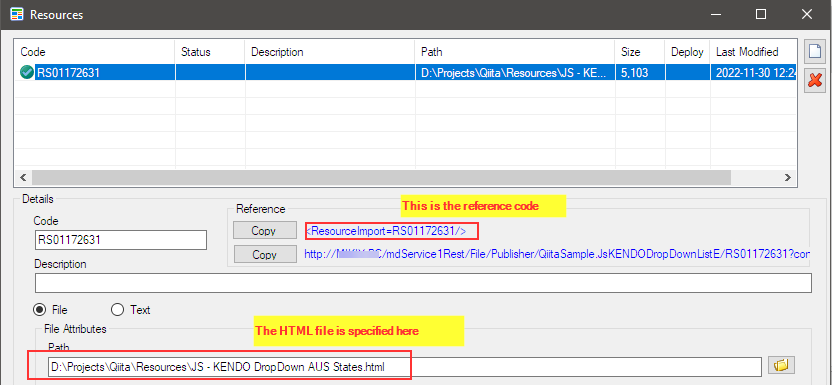
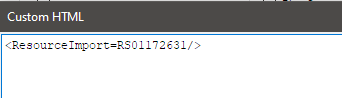
The HTML code, actually a file is held as a resource of the published report and its reference code is embedded as a custom HTML.
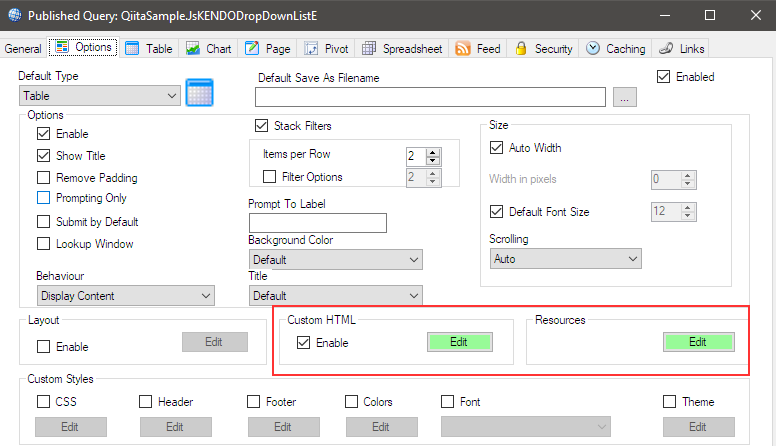
The HTML file is provided here as a resource.
Then the reference code is specified in here.
Published Report (Endpoint)
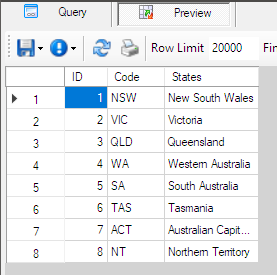
This published report returns a dataset that is used by the KENDO DropDownList control. It is called from the HTML code.
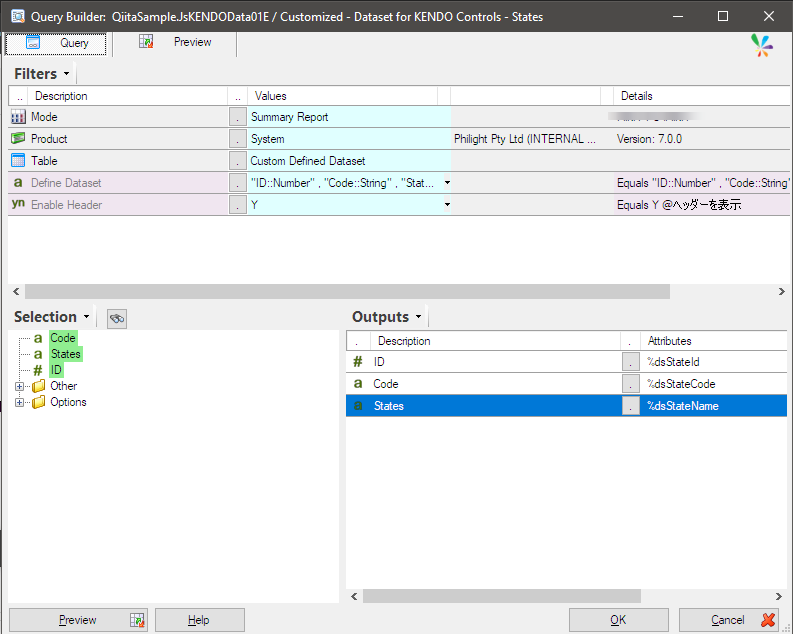
It returns this dataset.
Afterword
The extensibility of Sharperlight allows for the creation of comprehensive web applications. The data access layer can be designed using the query builder, eliminating the need to write SQL statements and making maintenance easier. This also enables developers to focus on UI design. In any case, try combining Sharperlight published reports (queries) with KENDO UI controls to create a variety of interactive reports.