
Using a Published Report as a Data Source
Introduction
A published report is essentially a web-based report presented via the Sharperlight RESTful service, and you can view the report in your web browser.
Furthermore, it has another feature that allows it to be used as a data source.
Please let me explain the feature in this post.
Practices
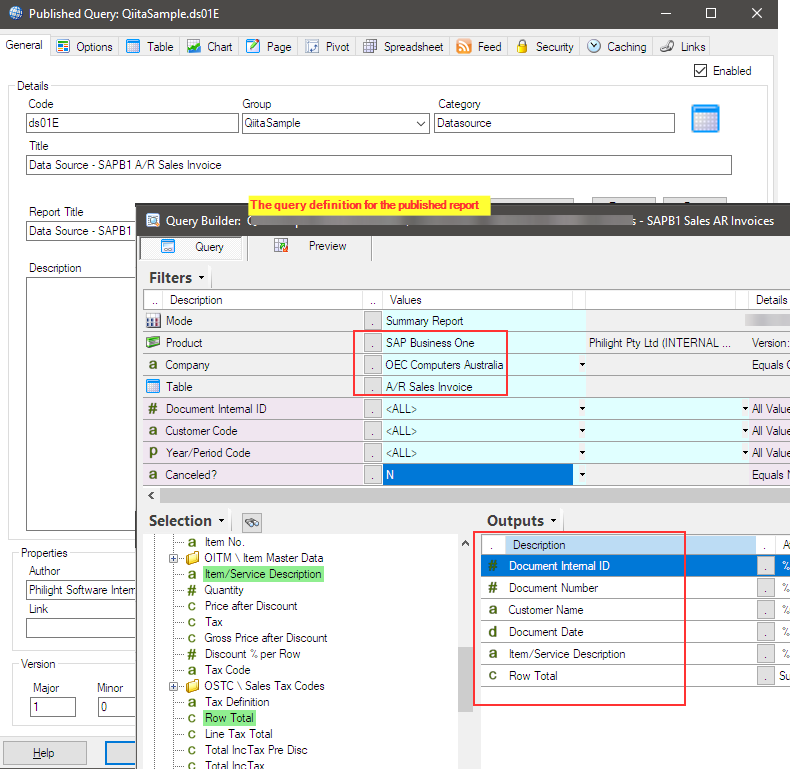
Prepare a published report that will serve as a data source.
I use SAP Business One database and pull data from A/R Sales Invoice table.
When we view this report in a browser, we use this URL format;
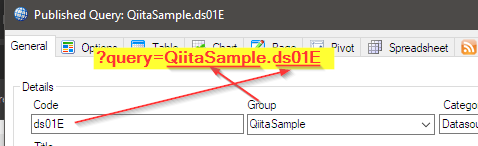
http(s)://{your server name is here}/mdService1Rest/Report/?query={Group}.{Code}It starts with “http” or “https“, depending on your server configuration, followed by the server name.
“mdService1” is the code for the Sharperlight service, followed by a word “Rest“.
“Report” is used when the published report needs to be viewed as a web-based report.
The parameter “?query={Group}.{Code}” can be used as shown in the example above;
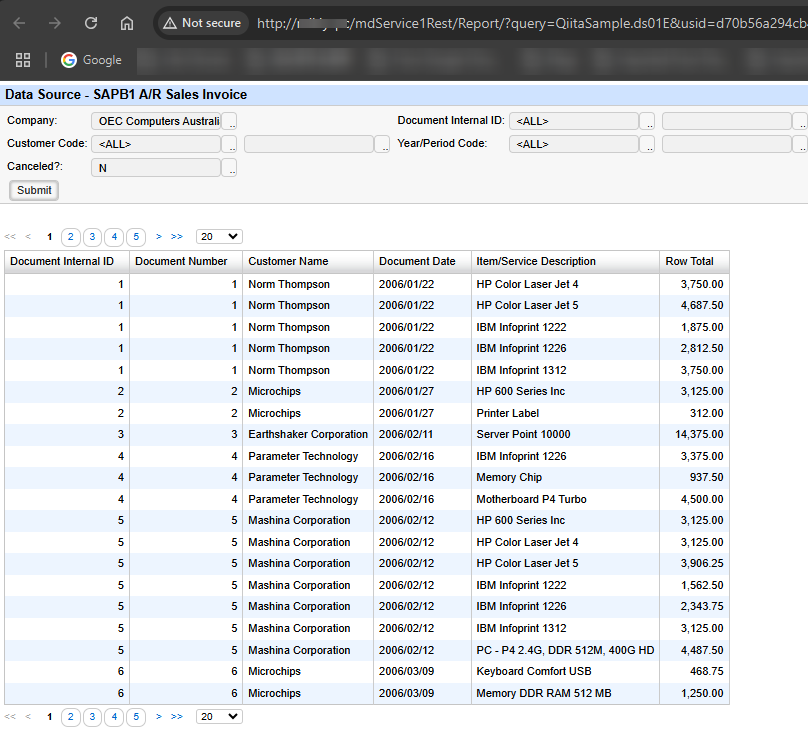
By using the URL, we can view this result.
Datasource – JSON
Now, in this section, we’ll look at how that published report returns a JSON dataset via Sharperlight Service.
It can be done by using the following URL.
http(s)://{your server name is here}/mdService1Rest/Datasource/?query={Group}.{Code}&dfmt=jsonarrayAs you can see, “Datasource” is specified in the URL rather than “Report” and it means that the report is used as a datasource.
A parameter “&dfmt=jsonarray” is also added at the end, it says that the report must return the result in JSON format.
When the URL is used, the query result is,
returned as in JSON format like this.
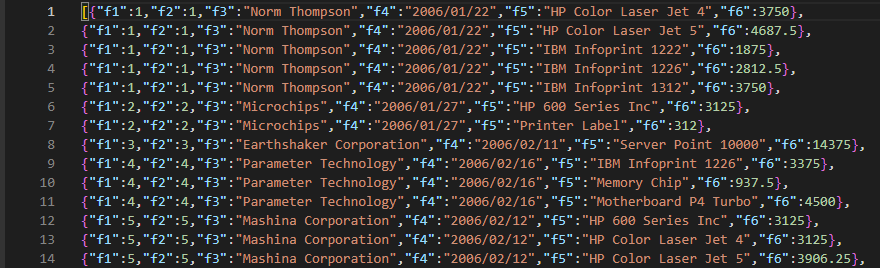
As you can see, the column names are converted to f1, f2, etc., which may not be useful in some cases. We would prefer to see the actual column names in the JSON dataset.
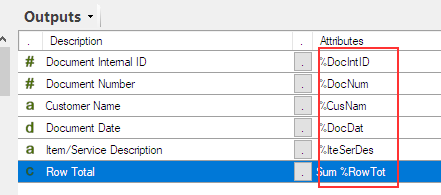
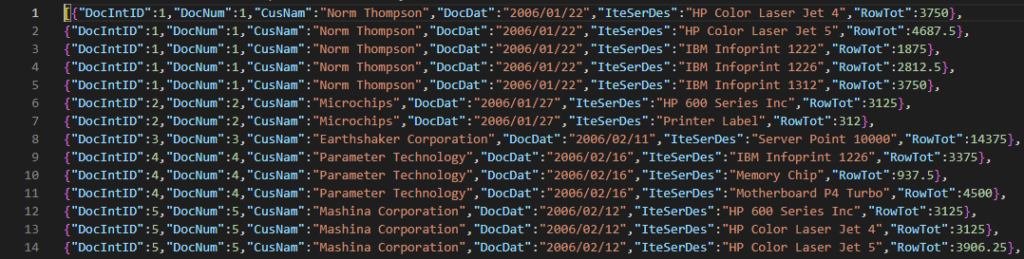
To make it happens, add another parameter “&dcat=UseNames” at the end of the URL.
http(s)://{your server name is here}/mdService1Rest/Datasource/?query={Group}.{Code}&dfmt=jsonarray&dcat=UseNamesLet’s see the result, the name defined in the query is used.
Datasource – Table
This is another way a published report can be used as a data source. I will show you how a published report is utilized as a table in another query.
Open Query Builder from Sharperlight Application Menu and choose System as Product.
Select “Custom Defined Dataset” under “Other Data Sources” in the Table Lookup dialog.
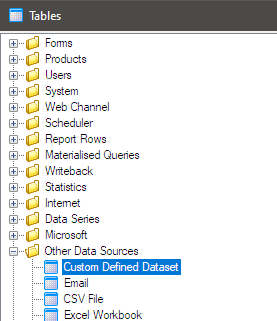
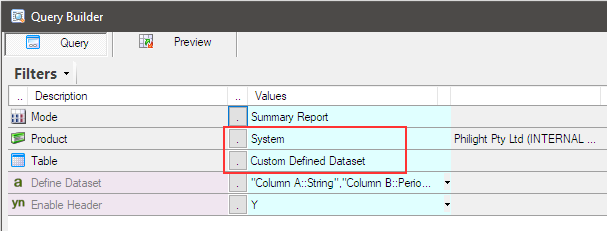
Use a syntax “_Publisher={Group}.{Code}” to specify the published query created earlier into Define Dataset filter.
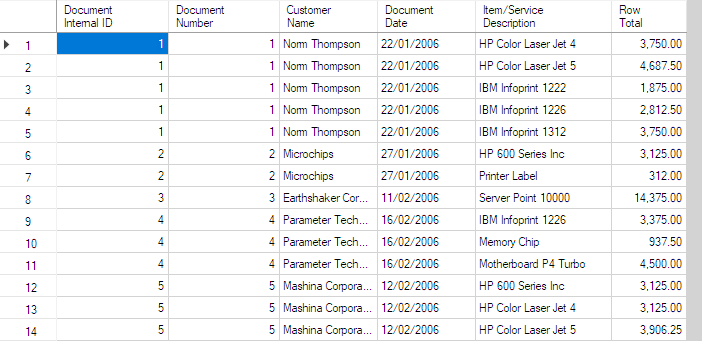
It must be “_Publisher=QiitaSample.ds01E“. Once the report is specified, the selection list will be populated.
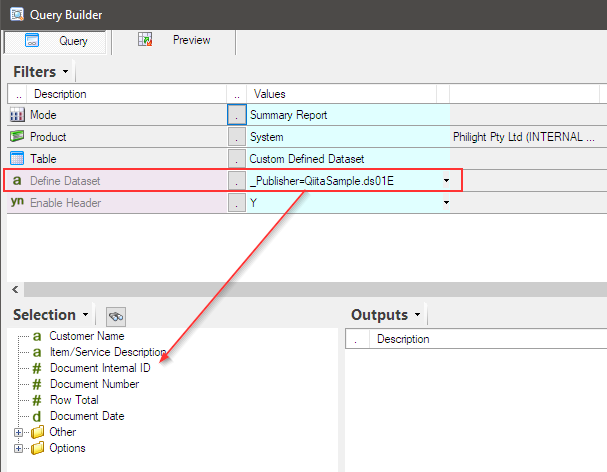
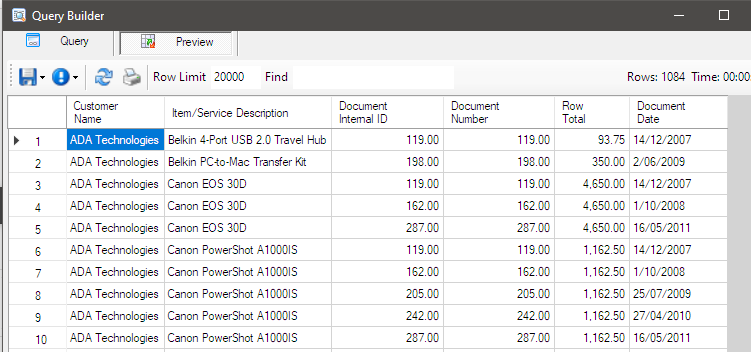
Select all columns for output and preview the query; it will return the dataset.
Afterword
A published report is a web-based report, but it can also be used as the endpoint of the service. This option is particularly useful when developing custom web applications or when a JSON dataset is required.
Additionally, a published report can serve as a virtual table for another query, offering greater flexibility in your solutions.
Sharperlight tools are not only designed to provide a final solution, but rather to be applied and combined to solve complex business problems more flexibly. We hope our customers will use Sharperlight in a variety of innovative ways.