Query Builder – How to decrypt an encrypted filter value
All Sharperlight Web Channel Reports that have filters defined can have those filters set via the URL parameters. By using the &fltName=valueFrom&fltName_2=valueTo type syntax where Name is the name of the Filter in Query Builder, you can override any filter you wish to target. If the URL is modifed to use DataSource instead of Report then the data can also be returned in a number of different formatts including JSON, XML and CSV instead of the Report or Chart. See the Restful Service Help for more details on URL parameters.
Sharperlight Expressions supports a good set of the most commonly used encryption functions such as TrippleDES, SHA and MD5 etc to name a few. What this article will demonstrate is where a Tripple DES encrypted Customer Account code is passed to a Sharperlight report as a URL parameter from some external application. The Sharperlight Report will decrypt the Account Code filter using the same password that was used to encrypt it and return the results for that Account. The idea being we can make if very difficult for users to simply directly edit the URL address and add other Account Code details on the URL and get results. We can make the Tripple DES encrypted Account Code even safer by including the current date in the password. In this way the encrypted Account Code will never be the same from day to day so a saved URL address will not work the next day.
Please note:
Datamodels can be constructed to enforce data access security based on the Users sign in account so that the data returned will always be limited to just their accounts for example without any reporting filtering involved. But for this example we will be exploring the url encryption approach.
To understand how Tripple DES works by creating a Output Expression that encrypts the Account Codes with the password you decide on

Explore the Functions in the Expression folders and look for the Encoding Folder and select the EncryptTrippleDES function

When we preview the results you can see what the encrypted Account Code will look like with the password selected
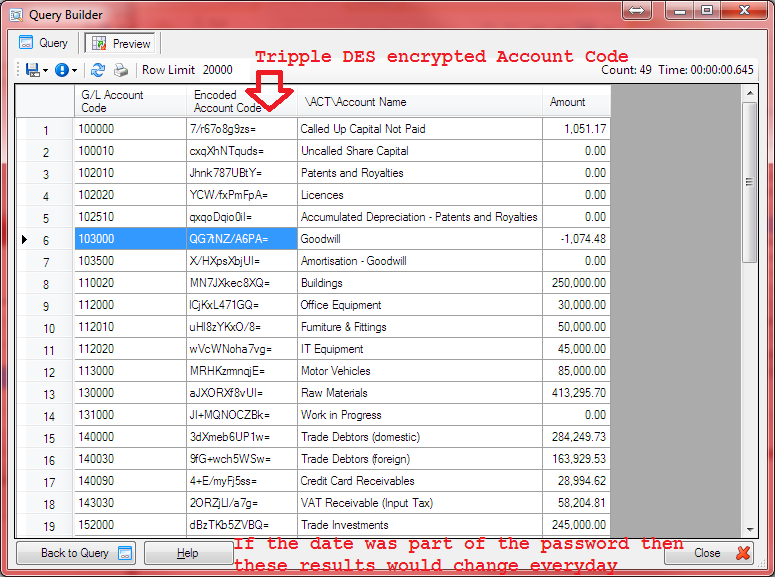
Now we have some examples of what an encrypted Account code would look like, lets now create a Prompt Only Filter which will receive the encrypted Account Code details. This will then be passed to a Filter on the Account Code that uses a Decrypte Expression to turn the encrypted text back into a real Account Code.

Make sure the new Prompt Only Filter values is above the Account Code filter as it will be receiving the encrypted value and then the Account Code filter below it will be referencing that value and decrypting it.

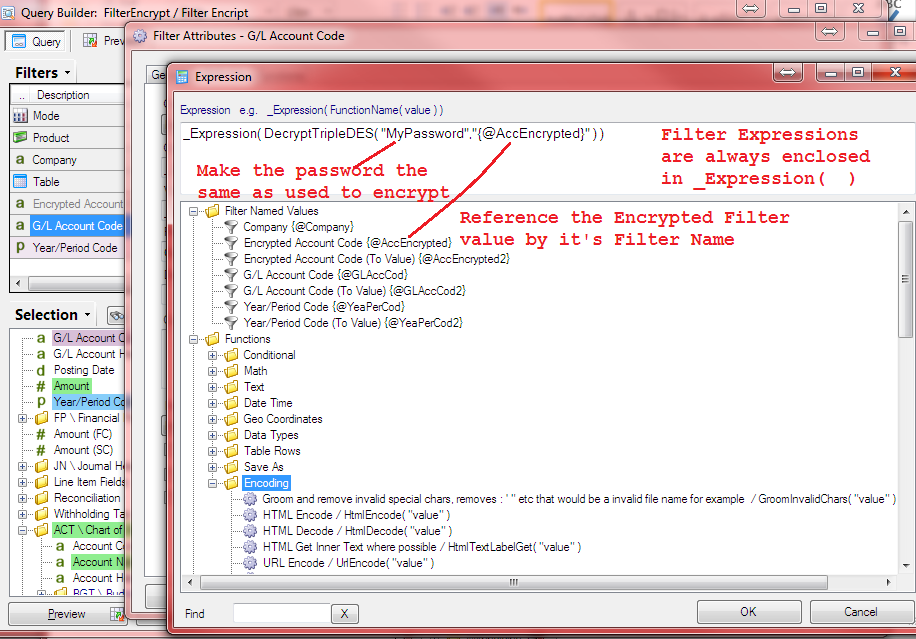
Change the Account Code Filter now to using a Expression that will decrypt the value referenced by the @staging-sharperlight-com.stackstaging.comAccEncrypted Filter.

The Account Code Filter options where you can build up the Filter Expression

Windows Showing the Filter Expression Window
Query Builder Preview

The Web Channel showing the URL encrypted value being set on the URL address using the flt parameter
http://ivonlaptopi7/mdService1Rest/Report/?query=Test.FilterEncrypt&usid=838064d1cefc4842a3a297f8d3c20ae0Z&fltAccEncrypted=QG7tNZ%2fA6PA%3d
Notice that the URL filter value has to be further URL encoded to protect reserved charactors. For example / becomes %2f and = becomes %3d

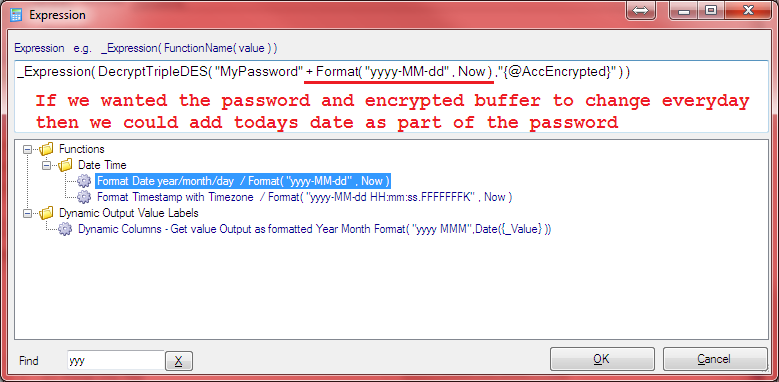
Consider another variation on the Password where it changes everyday by using todays date as part of the password e.g MyPassword2015-09-25. In this way a encrypted Account Code resulting text will change everyday even for the same Account. So a copied URL address will not be valid the next day preventing bookmarking of addresses.
_Expression( DecryptTripleDES( “MyPassword” + Format( “yyyy-MM-dd” , Now ) ,”{@staging-sharperlight-com.stackstaging.comAccEncrypted}” ) )