
Azure AD / Entra ID Synchronisation
Azure AD has now been renamed to Microsoft Entra ID but for this artive we shall refer to it as Azure AD. Azure AD is a multi-tenant, cloud-based directory and identity management service. Since it is based in the cloud, it allows users to sign up to multiple services and access them anywhere with a single set of login credentials. Many different services use Azure AD as a login, such as Microsoft 365 and Microsoft Azure. Azure AD simplifies managing user logins as well as their permissions. Groups can be made, which will allow permissions to be set, as the different groups can have different levels of permissions.
Sharperlight has an Azure AD feature, which allows users to connect and use the login and grouping details from Azure AD. This simplifies managing user profiles as the administrator only needs to edit the details in Azure AD. Sharperlight creates a connection to Azure AD and therefore always has the current details.
It is important to note that any Azure AD synced profile in Sharperlight will require internet connection when logging in, as Sharperlight needs to communicate with Azure to validate the credentials. When there is no internet connection, only local user profiles can be used.
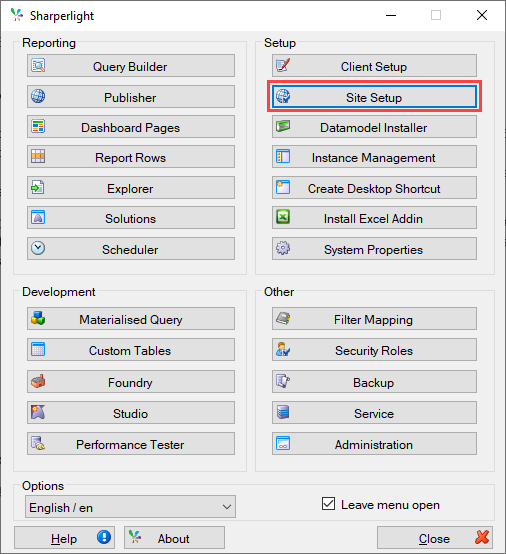
To set up Azure AD synchronization in Sharperlight, first navigate to Site Setup.
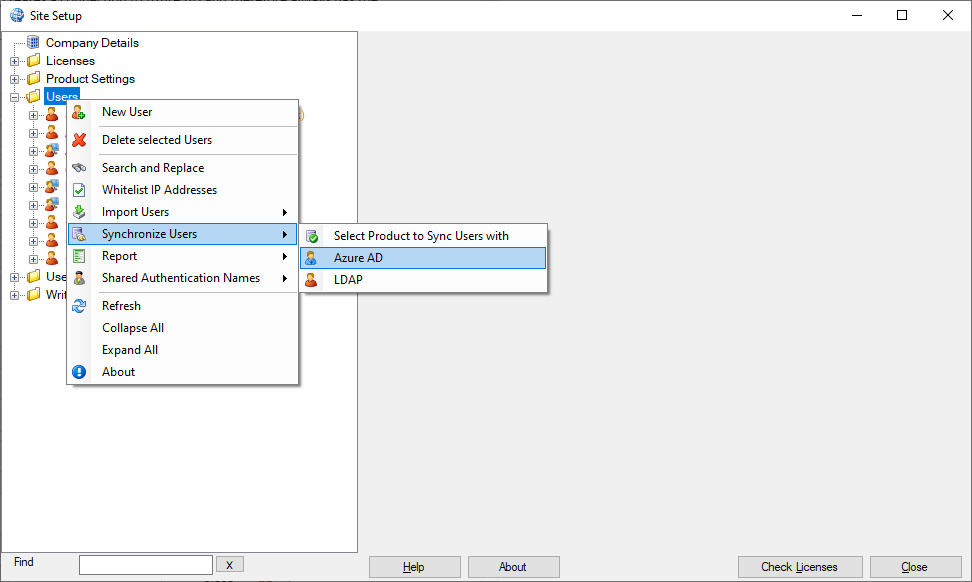
Right click on the Users folder –> Synchronise Users –> Azure AD.
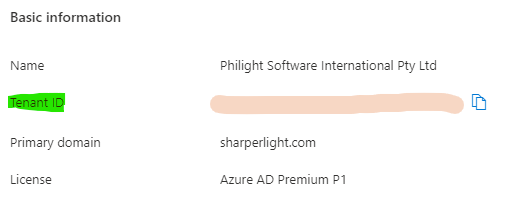
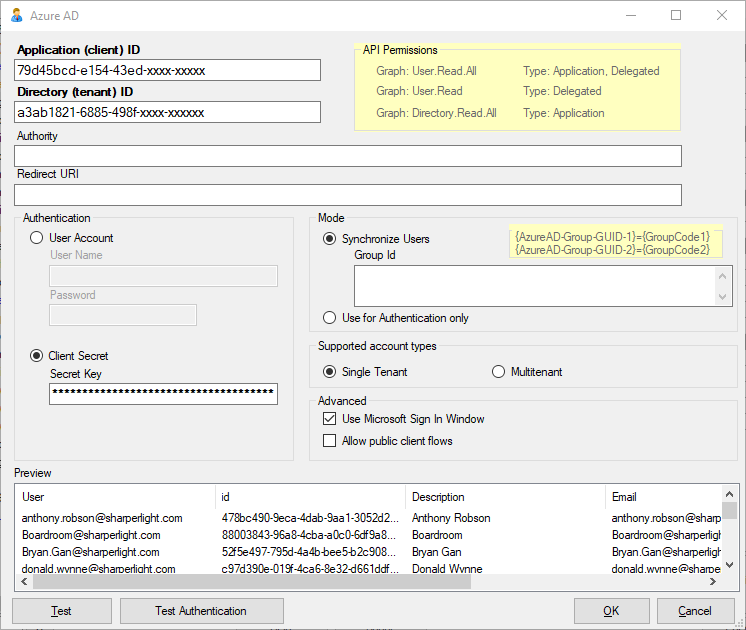
Fill in the Site Setup Azure AD form, using the details from Azure (refer to the Retrieving Azure Details section below).



Mode
- Synchronise Users: Creates user profiles in Sharperlight for all the users in Azure AD.
- Group ID: Filters the user profiles brought into Sharperlight. If left blank, it will bring in all user profiles in Azure AD.
- The format is the Azure Group GUID followed by the Sharperlight group code that it is to be assigned to. An asterisk (*) can be added to the end to give the accounts from that group Administrator rights.
- Group ID: Filters the user profiles brought into Sharperlight. If left blank, it will bring in all user profiles in Azure AD.
- Use for Authentication only: This only creates the connection to Azure AD and does not create any profiles within Sharperlight. To use this connection, user profiles have to be manually created in Sharperlight, and the authentication needs to be set to Azure AD.
Supported Account Types
- Single Tenant: Only using the accounts from the organisation’s Azure directory.
- Multitenant: Can use the accounts from multiple organisation’s/private Azure account directories.
Advanced
- Use Microsoft Sign In Window: Sharperlight will use Microsoft’s sign in window to validate the credentials. If multi factor authentication is enabled in Azure, it is important to turn this feature on.
- Azure multi factor authentication can be used in conjunction with Sharperlight’s two factor authentication. After the user signs in using the Microsoft Sign In Window, the Sharperlight login window will appear requesting two factor authentication.
- Sharperlight accommodates for both Azure AD user sign ins as well as other Sharperlight user sign ins simultaneously. Normal Sharperlight user accounts will not work with a Microsoft Sign In Window, therefore, Sharperlight has a work around. Closing the Microsoft Sign In Window will make the normal Sharperlight Sign In Window appear and users can log in regularly.
After filling out the form, click Test, which will retrieve all the user profiles and display them in the Preview area.
Test Authentication can then be used to ensure that the details are correct and that the login system is working properly.


Once the form has been submitted, the user will then be prompted to choose an existing user profile to act as a template. The imported profiles will have the same details (i.e. permission settings) as the template. If the user profile chosen as the template was disabled, all new user profiles from Azure will also be set as disabled. This can be useful as it prevents new users in Azure to automatically be given access to Sharperlight, although it can also be the opposite scenario, so be sure to check that field in the template. Any new accounts created in Azure AD will be reflected in Sharperlight, so this process only needs to happen once.
Once the Azure AD profiles have been created using the template, it can then be edited, and these changes will not be reset whenever a re-sync is performed. If the user wants new user profiles (not yet synced) to be based on a different template, right click one of the users, navigate to Synchronise Users and click Select a Default Template User (will not affect existing user profiles). On that same menu option, users are also given the ability to get rid of all the synced user profiles by clicking on Remove Sync with Product.
