Converting Images and PDFs to text or JSON in Scheduler
This article will explain how to convert documents from PDF and Image format to Text or JSON via the Sharperlight Scheduler action ‘OCR Image or PDF to Text’.
‘OCR Image or PDF to Text’ converts images and PDFs using an Optical Character Recognition service called OCRSpace. This has a viable free version, but also has paid versions if you need to process large files sizes (over 1MB) or many files (over 25,000 requests in a month).
This action can be useful when automatically reading data from files to a database, such as PDFs or images of invoices, customer sign-in pages, or other scenarios where you need to gather text from images.
File to Text is a similar action, converting HTML and Docx files to text. This will be discussed in a separate post.
Section 1: ‘OCR Image or PDF to Text’ Action
The first example will cover OCR for PDF files.
The first step is to create a new action under a scheduled task.

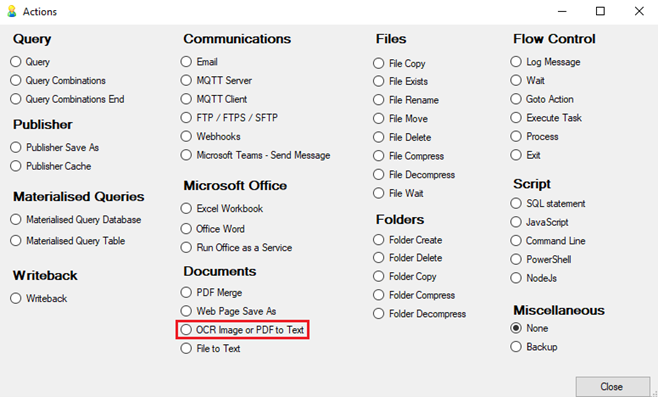
After doing this, edit the action by selecting it. The options are described below, but further information can be found by hovering over the elements with your cursor.
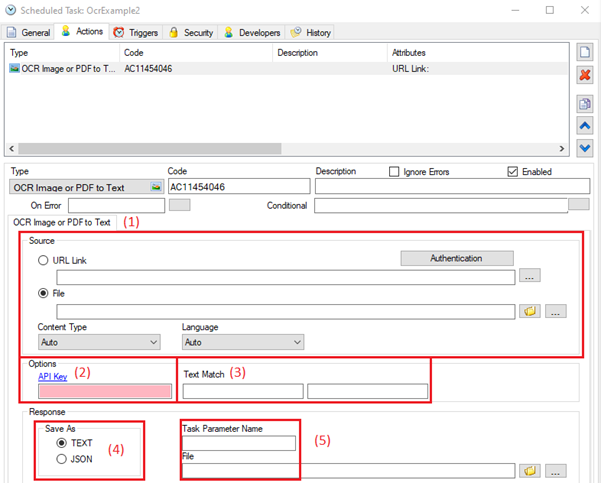
- The source can be either a file or a URL.
- If the source is a URL, Authentication options can be set using the ‘Authentication’ button.
- You can override the automatic content type and language detection here
- This is where you enter your OCR Space API key. OCR Space is an online OCR service provider, with both free and paid options.
- While the free version will be acceptable for small numbers of requests and file sizes, you may want to consider a paid subscription if you have large amounts of files to convert or the files are larger than 1MB.
- More details and the signup page are available at: https://ocr.space/ocrapi#free
- Text Match is used to verify that the file is the specified type and correctly read, as if it doesn’t contain the words you enter in the two fields, it will throw an error.
- These fields are case insensitive.
- An example is making sure the invoices contain “invoice” and “total”.
- You can save the response either as text or JSON.
- JSON includes the coordinates the word was found at, so if you know the information is in the same position on the page, you could use this.
- Text formats the response as text, using whitespace to vaguely resemble the pdf.
- You can output the result here. You can use one or both of the output types.
- Task Parameter Name saves the response to a task parameter.
- File saves the result to a file.
Section 2: OCR over PDF for invoice writeback example
This section will be a tutorial on creating a simple scheduled task that reads all the PDF Invoice files in a folder, writing the data to a Materialized Query.
Some example files can be found here.
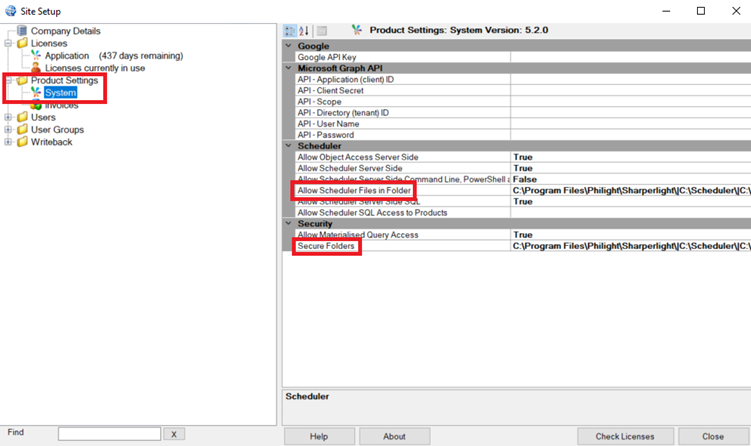
- Ensure Scheduler can access the Scheduler folder
- Add the Scheduler folder to ‘Allow Scheduler Files in Folder’ and ‘Secure Folders’
- Create a Materialized Query
- For reference, see the posts on Materialized Query Setup and Advanced Materialized Query Concepts
- Create a new Scheduled Task
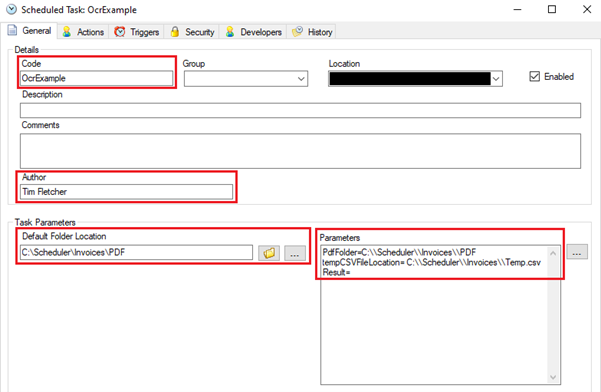
- Set General options and create needed Parameters
- Change the code to be meaningful and unique
- Add a description and comments
- Write your name as the author
- Create two parameters:
- PdfFolder – location of the stored invoices
- tempCSVFileLocation – path and name of the temporary csv file
- Result – an unassigned parameter to store the result of the OCR
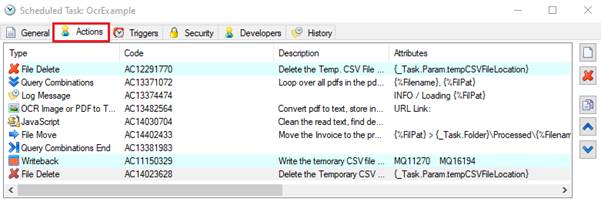
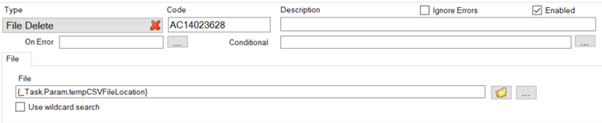
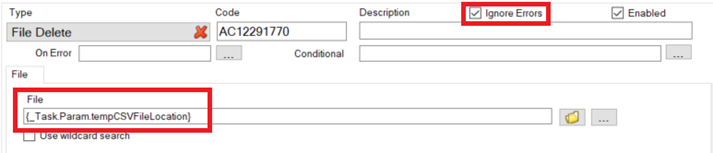
- Create a File Delete action
- Have Ignore Errors Checked
- Set ‘File’ as the tempCSVFileLocation parameter
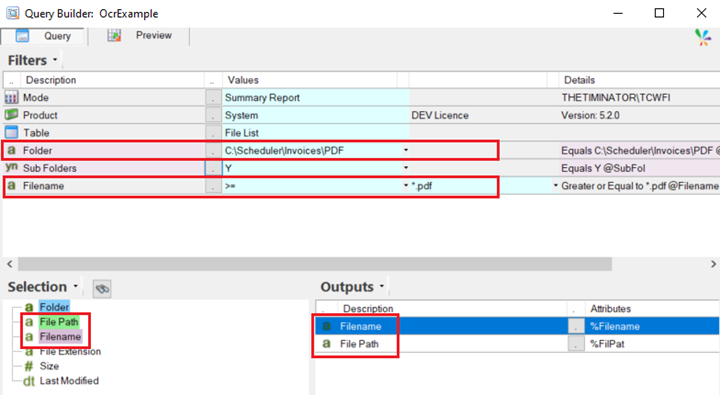
- Create a Query Combinations action
- In the ‘Query Parameters’ section, add ‘Folder={_Task.Param.PdfFolder}’
- Press ‘Edit Query’ and change it to a summary report over the product System and the table File List.
- Output the File Path and the File Name
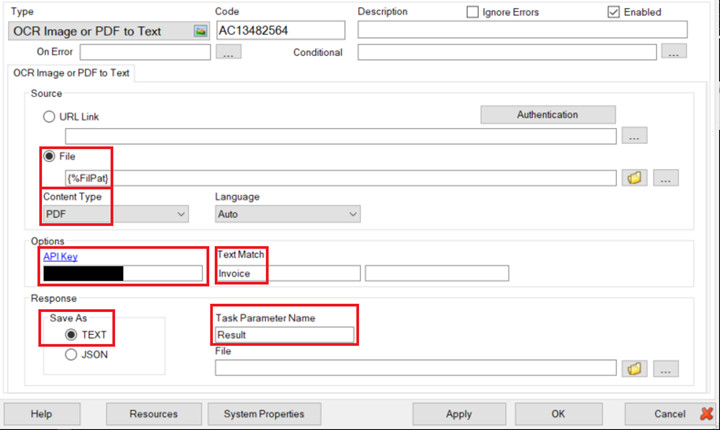
- Create an OCR Image or PDF to Text action
- Set the File to be the Query Combination variable for the file
- Set Content Type to PDF, although Auto would also work
- Set your API Key and the Text Match
- Set Save As to Text
- Set the task parameter name as ‘Result’
- Create a JavaScript action
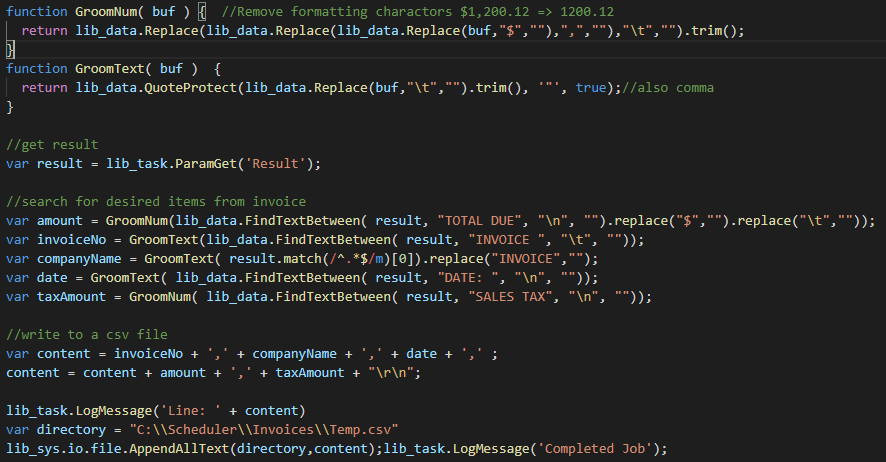
- Get the result of the OCR from the parameters
- Search the result for the required values
- In this case, we’re looking for text between ‘TOTAL DUE’ and a new line
- Or ‘INVOICE’ and a tab
- Make a csv line out of the values
- Have each variable connected with ‘+”,”+’
- Append the CSV line to the CSV File
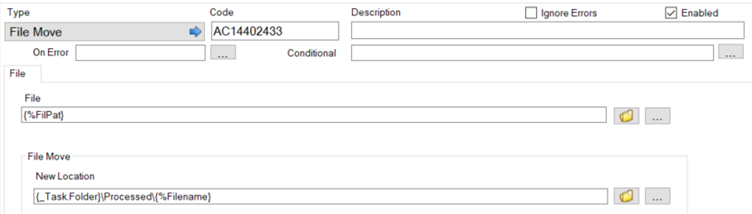
- Create a File Move action
- Create a Query Combination End action
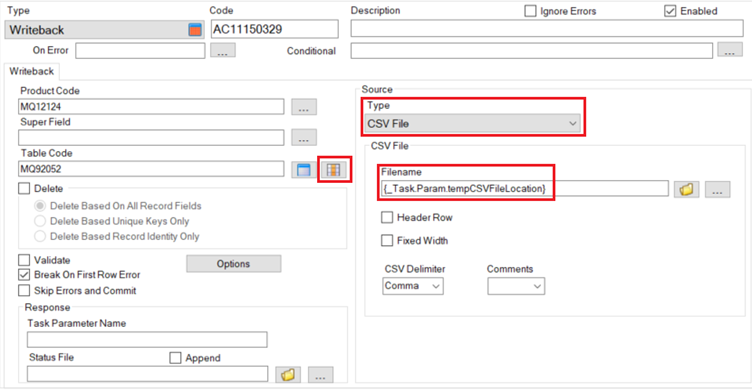
- Create a Writeback action
- Set the type to CSV File
- Set the file name to the parameter of the temporary CSV file
- Ensure “header row” isn’t checked
- Click on the icon with the orange cells in the middle to map the CSV file to the inputs
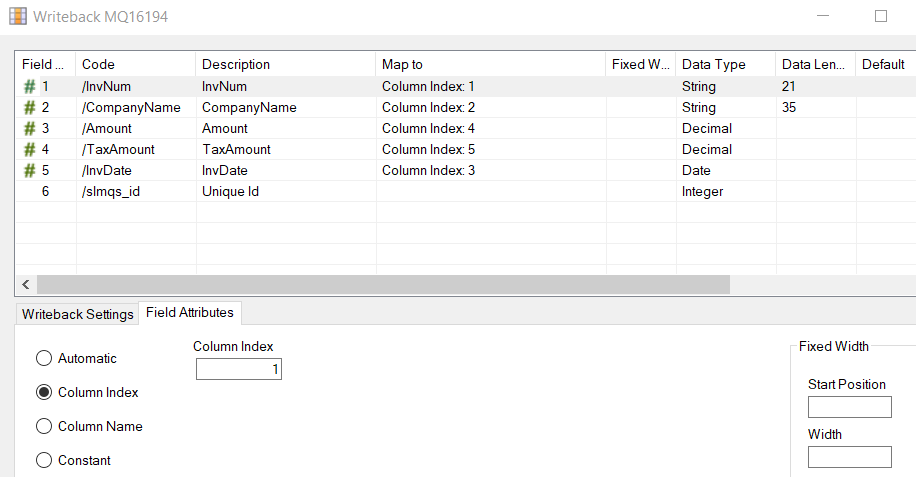
- Create a File Delete Action
- Delete the made CSV file at tempCSVFileLocation