
Converting Docx and HTML Files to text in Scheduler
This article will explain how to convert files in Docx or HTML format to Text via the Sharperlight Scheduler action ‘File to Text’.
The File to Text action is a scheduler action that reads a Docx or HTML File, storing the resulting text as either a file or as a Scheduler Task parameter.
This can be useful when automatically reading data from files to a database, such as Word documents of invoices, or saving webpages as HTML and scraping the file for data.
OCR Image or PDF to Text is a similar action, allowing for images and PDFs to be converted to text or to JSON. For more information on this, please see this post.
Section 1: ‘FileToText’ Action
To use this action, the first step is to create a new action under a scheduled task.

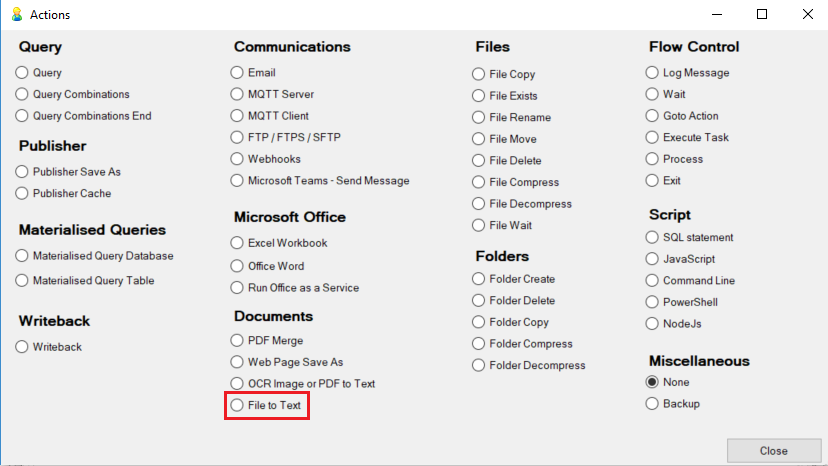
After doing this, edit the action by selecting it. The options are described below and in the pop-ups when you highlight the fields:

- The source must be a file with a .docx or .html extension.
- Text Match raises an error if the text in the fields are not present in the result
- The error format is ‘ERROR: Text match not found’
- These are case insensitive
- If both fields have text, both will need to be present in the result
- The resulting text is outputted to one or both of these fields
- TextFile saves the result as a file
- Task Parameter Name saves the result to a task parameter.
Section 2: FileToText Docx Invoice writeback example
This section will describe a practical example using the File To Text action to read a folder full of word document invoices, and write them into a materialized query.
Associated files can be found here.
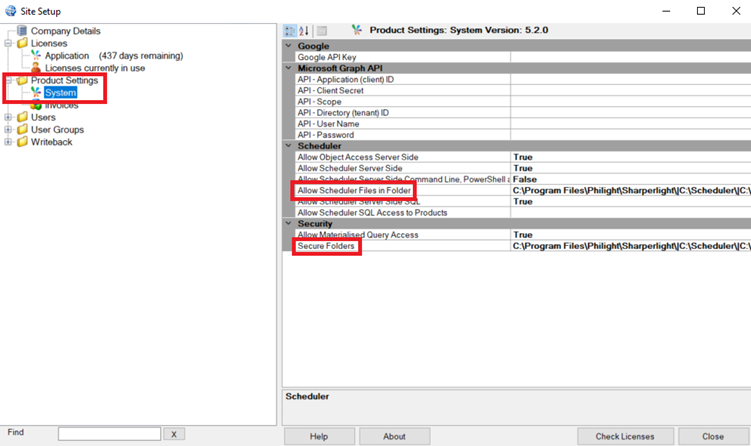
- Ensure Scheduler can access the Scheduler folder
- Add the Scheduler folder to ‘Allow Scheduler Files in Folder’ and ‘Secure Folders’
- Create a Materialized Query
- For reference, see the posts on Materialized Query Setup and Advanced Materialized Query Concepts
- Create a new Scheduled Task
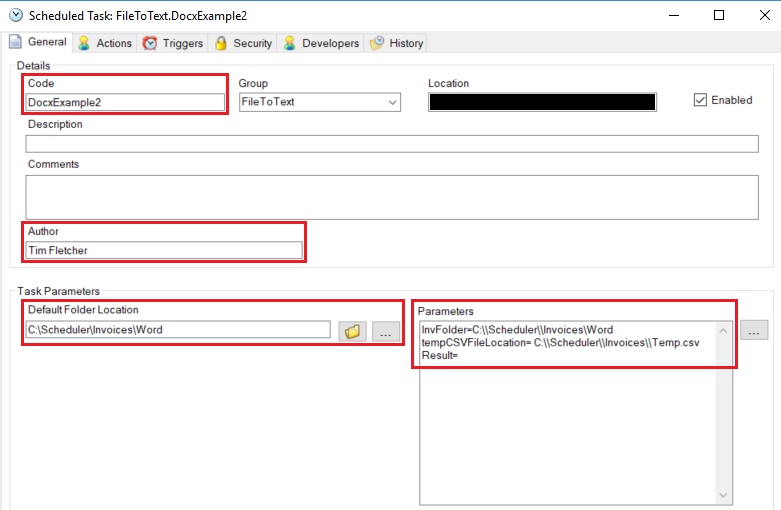
- Set Scheduled Task options and create required parameters
- Change the code to be meaningful and unique
- Add a description and comments
- Write your name as the author
- Add several parameters:
- InvFolder, the folder where the word documents are stored
- tempCSVFileLocation, the path and name of the created temporary CSV file
- Result, a parameter used to store the result of the FileToText action
- Create the actions in the scheduled task
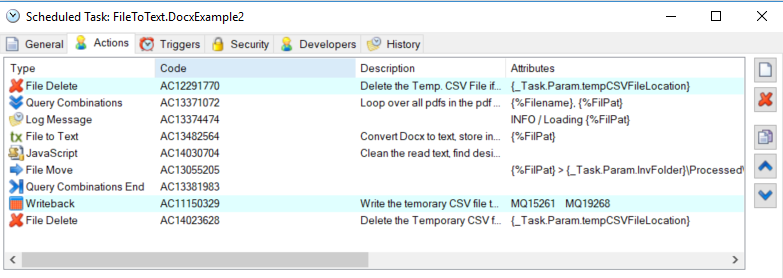
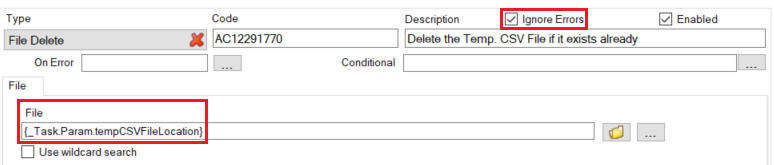
- File Delete
- Check Ignore Errors
- Set the FIle to be the CSV file location
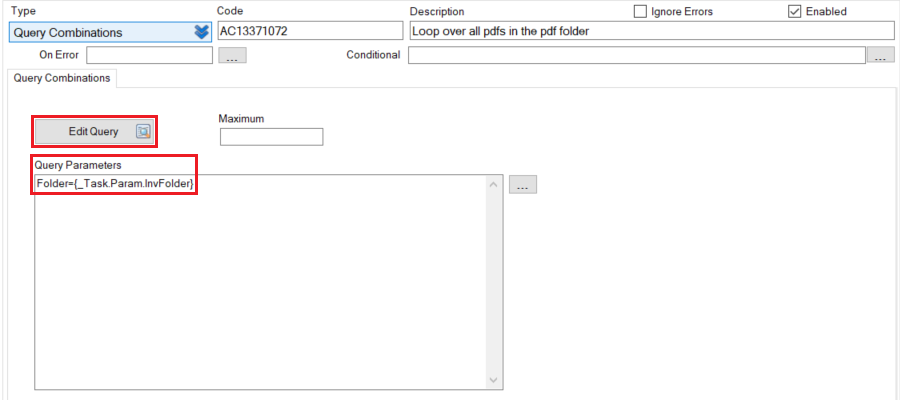
- Query Combination
- In query parameters, set Folder to InvFolder
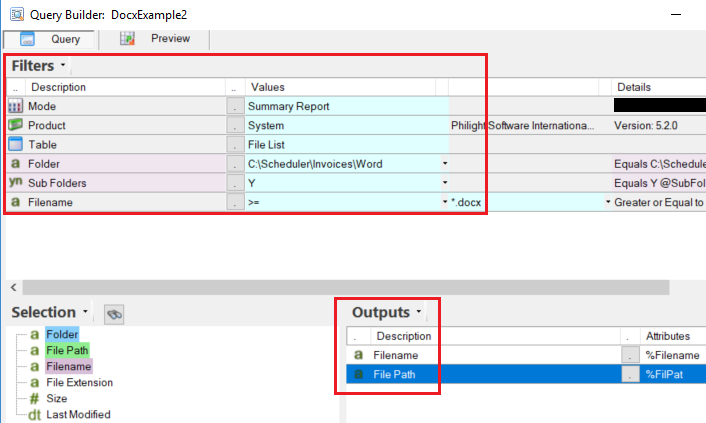
- Click on Edit Query and make a summary report over File List in System
- ‘Folder’ will be replaced by the value in Query Parameters
- Output File Path and File Name
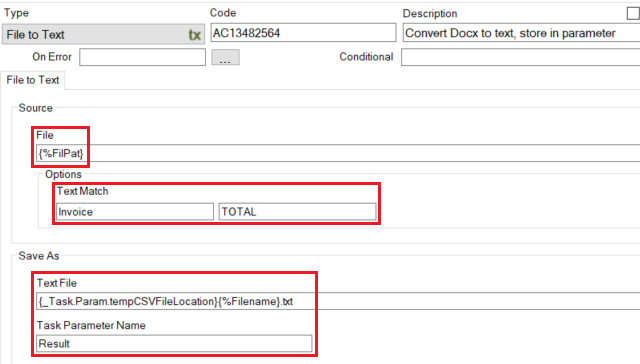
- File To Text
- Set File Path to the combination parameter for file path
- Text match to several key words, such as Invoice and Total
- Save it as the Task Parameter Result
- In the example, I also logged to to a text file so you can see the structure if you wish
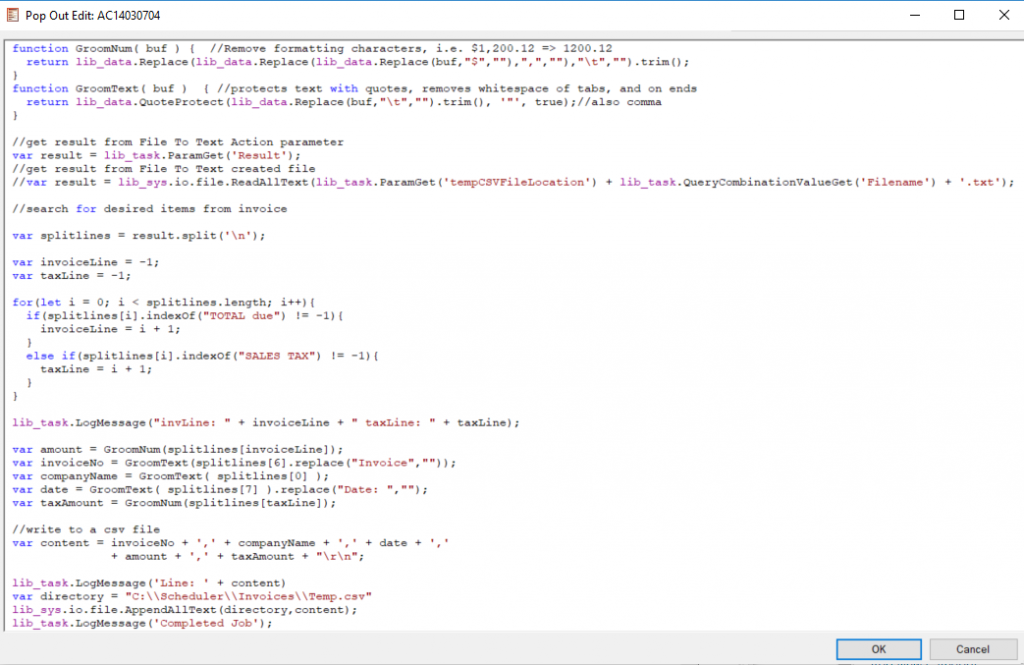
- JavaScript
- The functions GroomNum and GroomText are used to clean numbers and text such as removing currency signs, whitespace, and quote protecting text.
- The first step is to read the Result parameter
- Code is also supplied to read from the output file
- Then, you need to read the text file and gather the data you need. This will vary based on the structure of your word document.
- In this example, two methods are used.
- Searching for the row after a prefix, such as the row after ‘TOTAL due’
- Getting the data at a specified row
- In this example, two methods are used.
- Lastly, append the created record to the CSV file.
- End Query Combination
- This ends the query combination
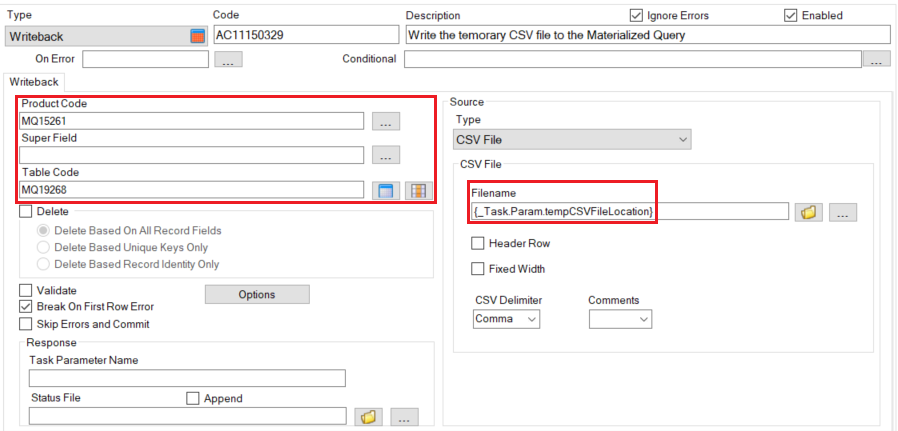
- Writeback
- Select ignore errors
- You may want to set a Status File and append if you decide to do this
- Select the materialised query in Product Code and Table Code
- Put the made csv file as the FileName
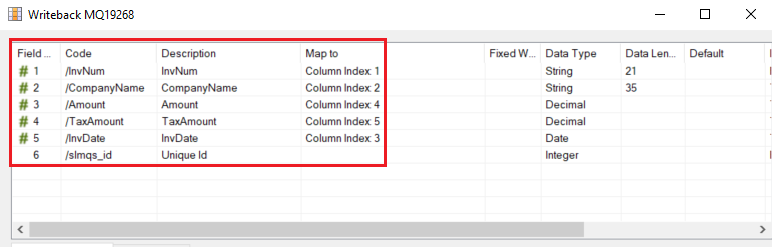
- Click the button with orange cells to the right of Table Code to map the CSV file
- Select the row, then select the column index
- Select ignore errors
- File Delete
- Same as the first file delete, except don’t ignore errors