
Automatically generate JSON data files
Introduction
Using a scheduled task, we will retrieve transaction data by accounting period and create a JSON file for each accounting period.
We use the query used in the post: “Save as JSON and extend the JSON format“
Practices
Let’s create a task in the Sharperlight scheduler and automatically generate a JSON data file.
Firstly, we create a query that returns a series of accounting periods.
Go to Scheduler -> Add Query Combinations Action.
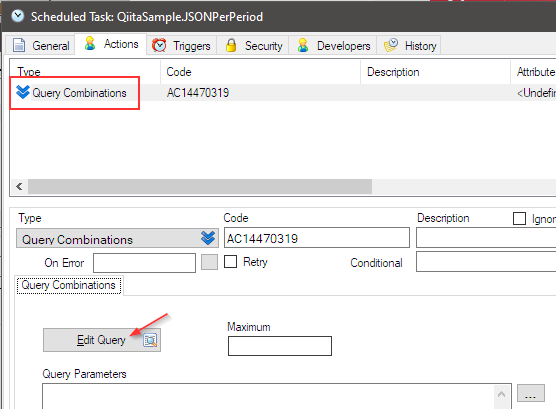
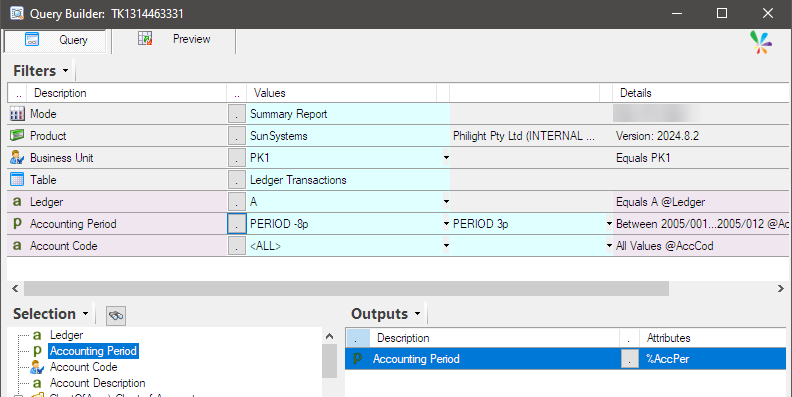
Click ‘Edit Query‘ and create a query that returns the Periods (accounting periods).
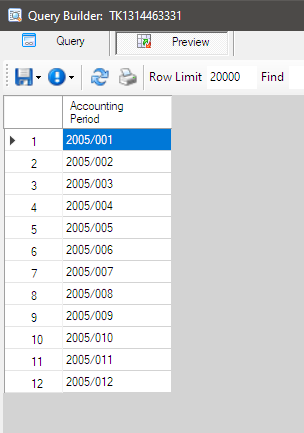
The accounting periods from 2005/001 to 2005/012 will be returned.
Next, we will add a Query action.
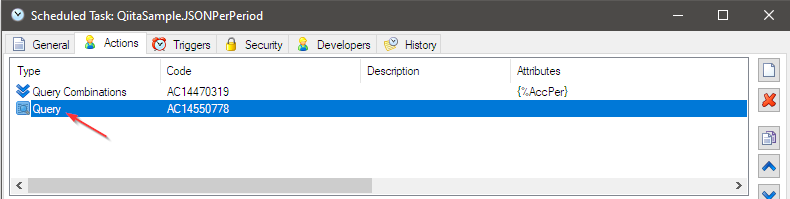
Prepare a query shown below by clicking “Edit Query” button for the action.
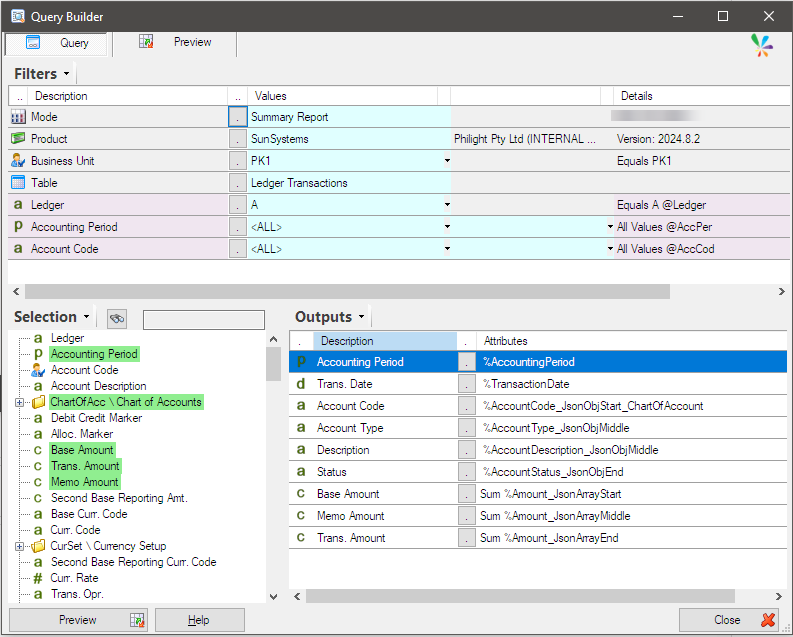
We will pass each accounting period returned by the Query Combinations action to the Query action one by one, and set to the period filter of the Query action as follows to save the JSON file for each accounting period in the Temp folder on the C drive.
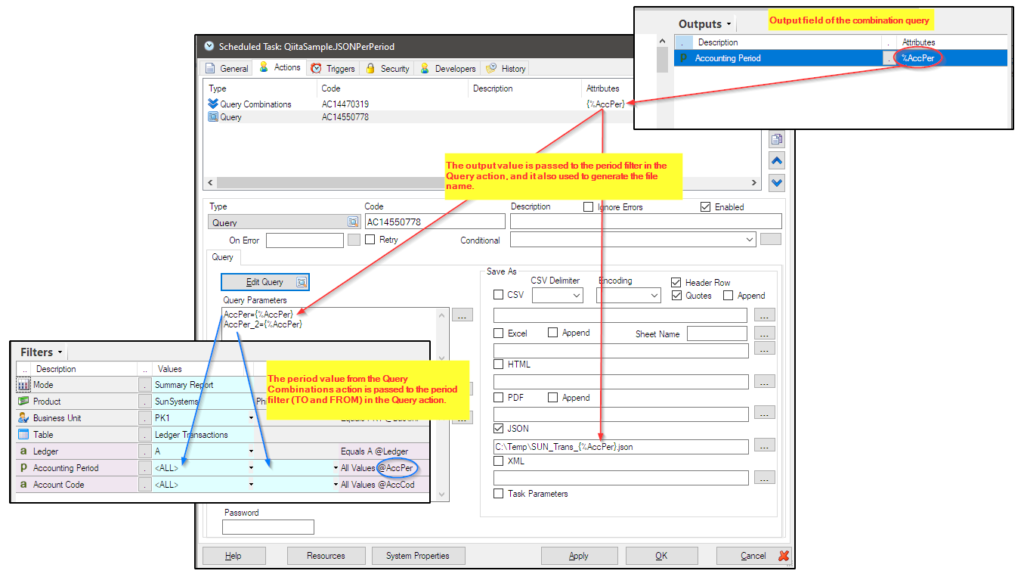
When you want to restrict access to folders on the Application Server, please read this post: “Allow Scheduler Files in Folder“.
Finally, we will add the Query Combinations End action.
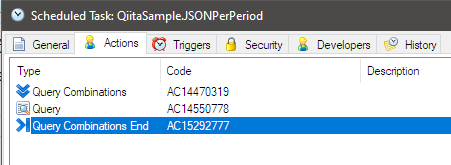
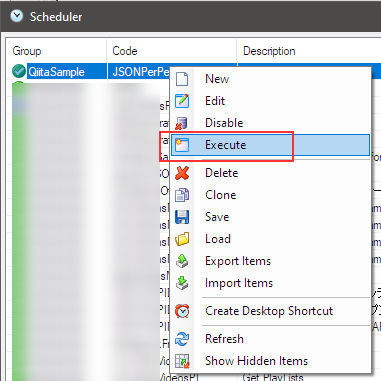
Save the task, select ‘Execute’ from the right-click menu, and run the task.
If the task completes without any issues, you should be able to find 12 JSON files in the C:\Temp folder.
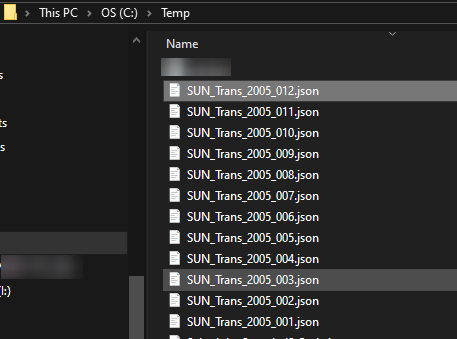
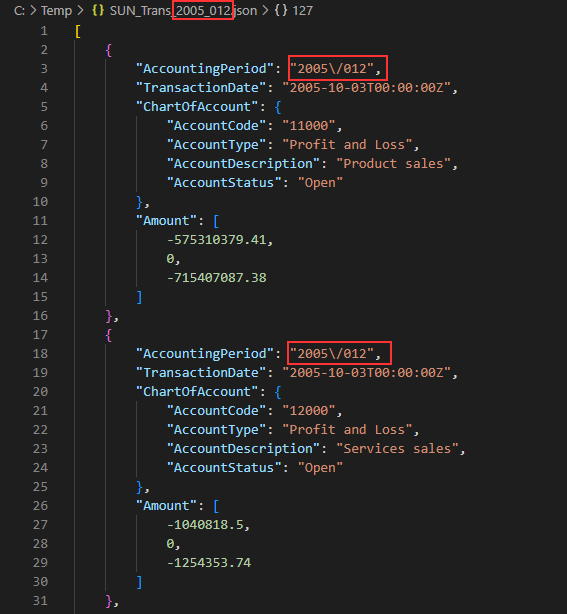
As per the settings, the JSON format is correct, and the accounting periods are properly synchronized.
Afterword
Please try to use Sharperlight Scheduler to automate your daily or monthly manual tasks.