
Value Formula – How to aggregate values
Introduction
The Value Formula is different to a Table Formula in that it returns a single value into the same cell where the Value Formula exists. In concept, Value Formulas behave like any other Excel formula. They can be copied and pasted, and they can be cell referenced to other cells and named ranges in the same workbook. The key advantage of a Value Formula is that at a cell level it gives the user complete control on layout and formatting.
The Value Formula is frequently used to return the balance of account or the value of orders based on specified filters. The formula is not limited to just summing values it also return the minimum, maximum, a count and the average.
There are two types of Value Formula:
- Aggregation type – It is used to return single summary values.
- Reference type – It returns individual reference information.
Practices
Let’s take a look at the Value Formula.
Aggregation Type
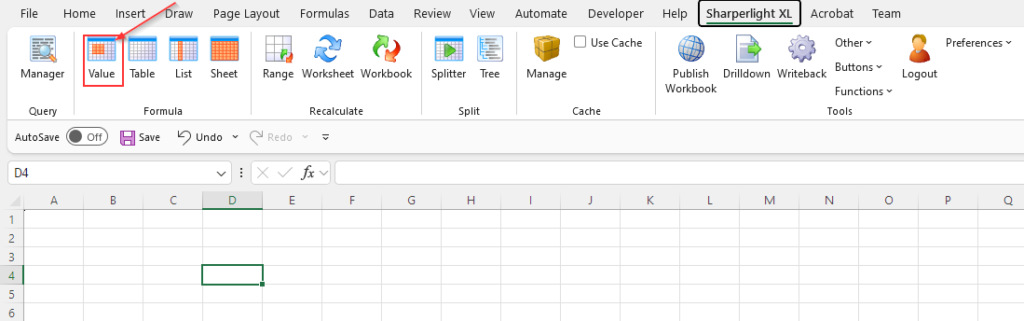
Select a cell and click the Value icon on the Sharperlight ribbon.
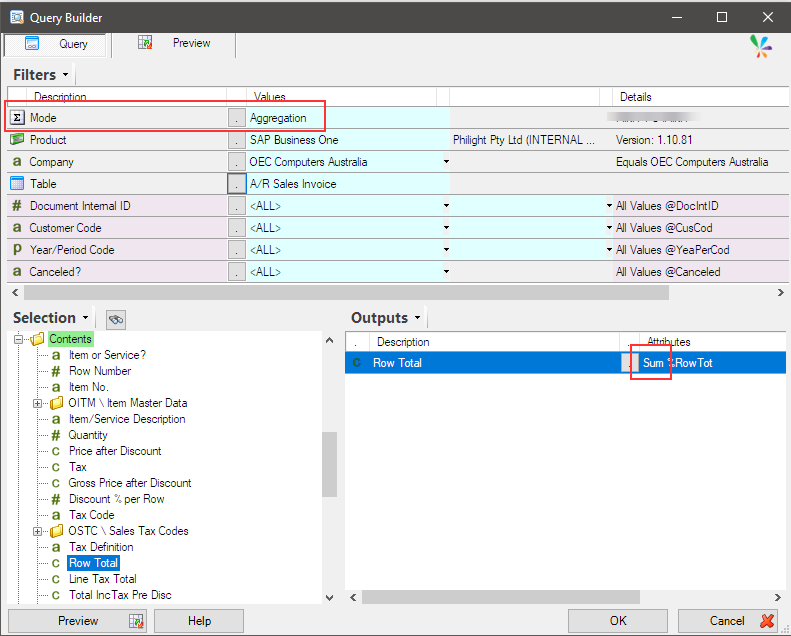
‘Aggregation‘ is set as the default for the Mode option when the Query Builder is first loaded.
Set ‘Row Total‘ field as an output item. ‘Sum‘ is automatically applied as the aggregation option.
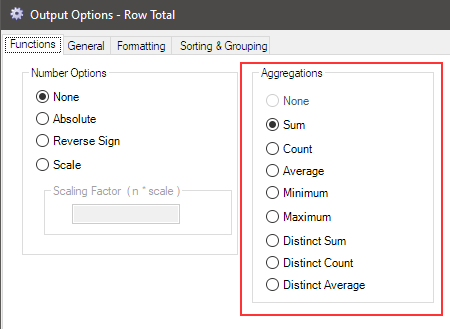
You can choose an aggregation option from:
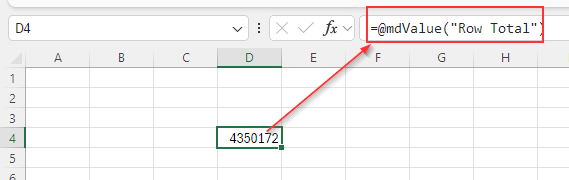
Click OK to execute the query. A SharperLight ValueFormula is created, and the aggregated value is displayed in the selected cell.
Reference Type
Select another cell and click Value icon again.
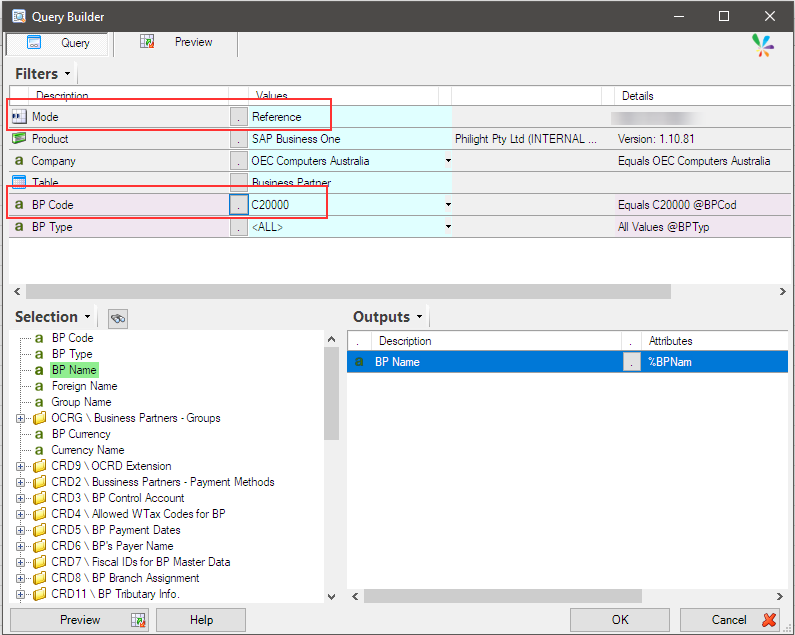
Change the Mode option to ‘Reference‘. Select ‘BP Name‘ field as an output item.
No aggregation option is applied for this type.
Then, the returned dataset must essentially be filtered to return only one row for this type. Therefore, I set ‘C20000’ as the BP Code filter.
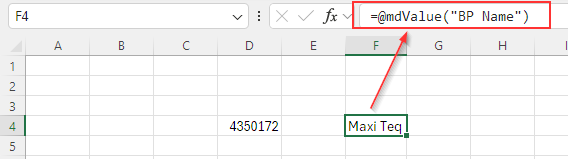
Click OK to execute the query. A SharperLight ValueFormula is created, and the returned value is displayed in the selected cell.
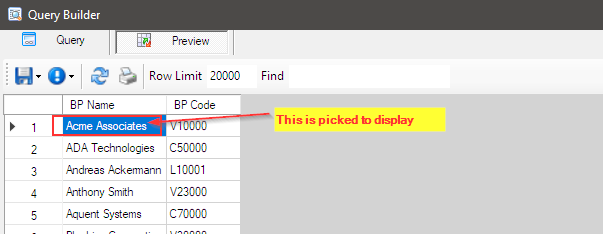
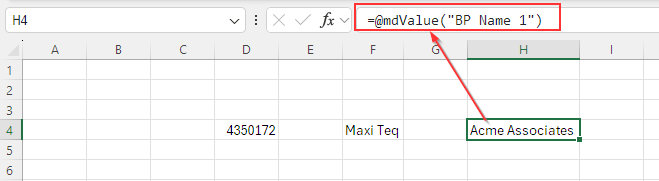
The ValueFormula is also smart enough to use the first output item in the first row in the returned dataset when the query returns multiple records.
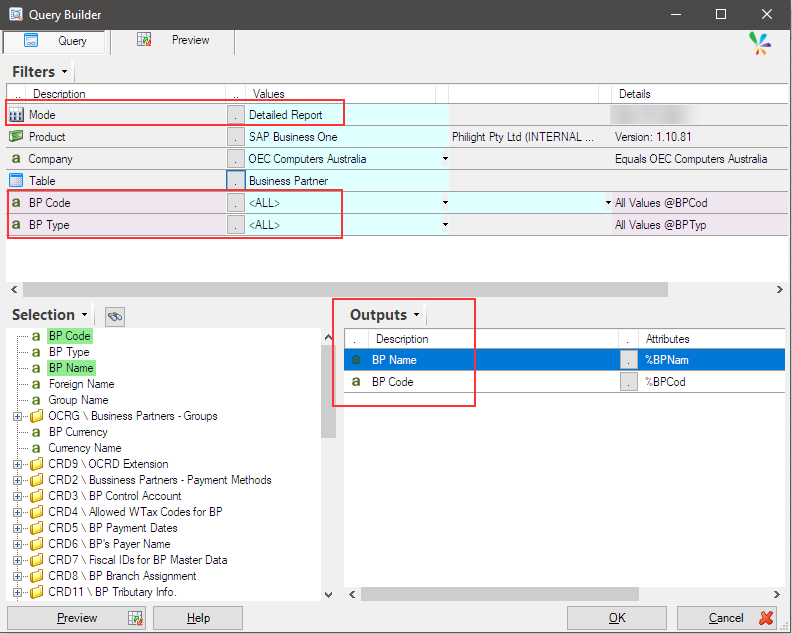
Check the query using the Preview option. The value shown below will be displayed in the selected cell, though it returns multiple rows.
Click OK to execute the query. A SharperLight ValueFormula is created, and the returned value is displayed in the selected cell.
Afterword
This is one of the SharperLight Excel Add-in formulas, and we hope it will be helpful for your business.
See also the post for Table Formula.
See also the post for further details of Value Formula Aggregation type.
See also the post for further details of Value Formula Reference type.
Aggregation Value Formulas: This video explains how the sum, average, count, minimum and maximum value from a query can be returned in an Excel worksheet using a Value Formula. This formula can use cell referencing on the column and rows, and thus the same formula can be reused with different cell referencing (Uploaded on February 7, 2014).