
Run Tasks Template
Introduction
I would write a topic regarding how we can execute multiple Sharperlight writeback defined on an Excel worksheet with one button. This can be done using the ‘Run Tasks Template’ option.
Practices
We basically prepare a table with data and define a Sharperlight writeback to load data to the connected database. In some cases, we may define multiple Sharperlight writebacks and may want to have just one button to trigger all of them.
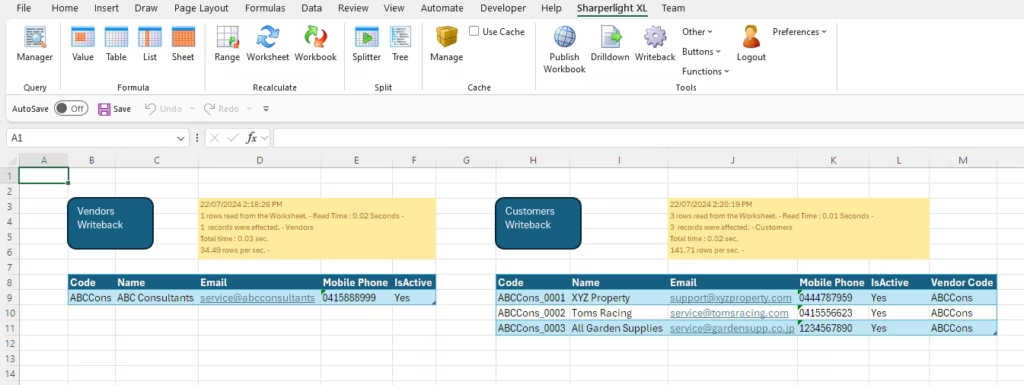
The image below shows two tables, each with a Sharperlight writeback defined.
Two execution buttons are defined, and we have to press them one by one.
Tasks Template
Let’s start considering changes so that we can use a single button to execute the two Sharperlight writebacks consecutively.
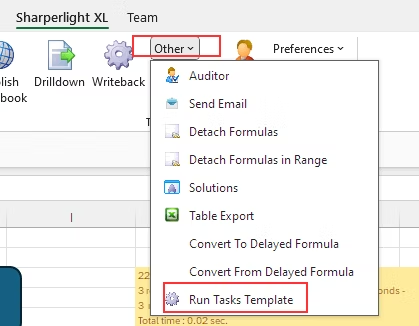
Select Cell N2, and choose Other => Run Tasks Template from the Sharperlight ribbon.
A table and a button would be populated as follows.
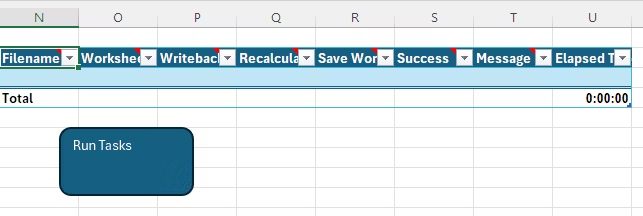
Add another row to the table.

Configuring the tasks template
Filename: It can be blank as we use the current active file.
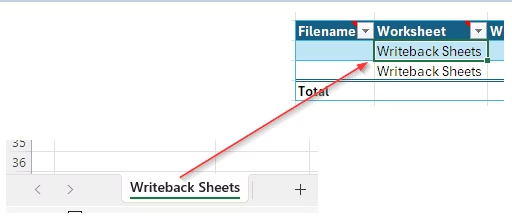
Worksheet: Type in the current worksheet name to the column.
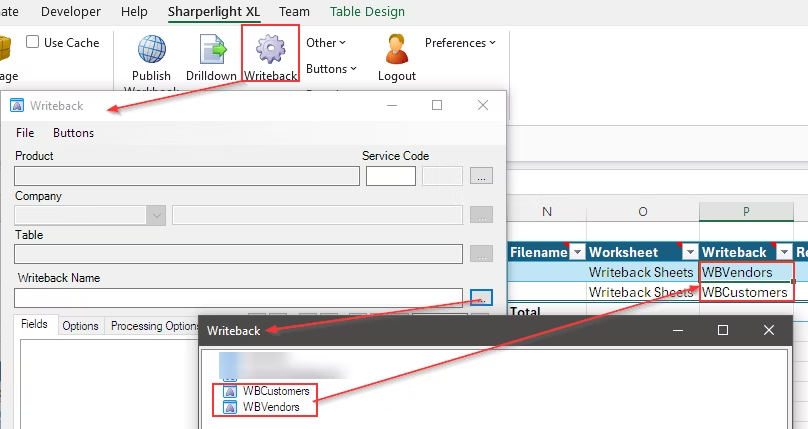
Writeback: Find the name of the Sharperlight writeback saved from the writeback dialog, and enter the writeback name into the writeback column.
Recalculate: It accepts a TRUE/FALSE boolean value or a blank cell. The recalculation will occur before the writeback. This time, I will leave it blank.
Save Workbook: It accepts a TRUE/FALSE boolean value or a blank cell. The save will be actioned after the recalculation and/or writeback. This time, I will leave it blank.
Executing the tasks
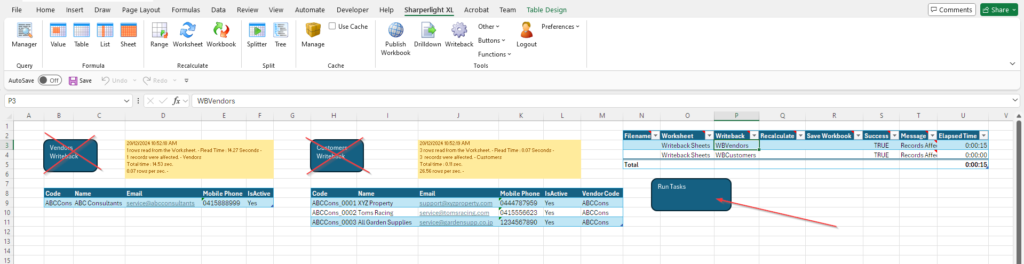
I have set the value for the template so far like this, and now it’s time to run the template.
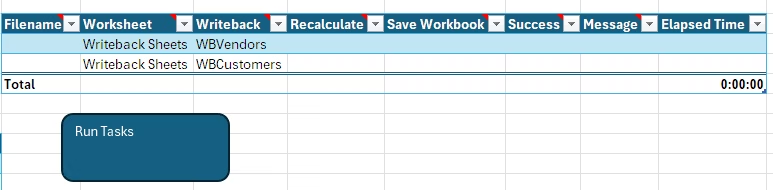
Click Run Tasks button, the tasks would be executed from the top and we should see this.
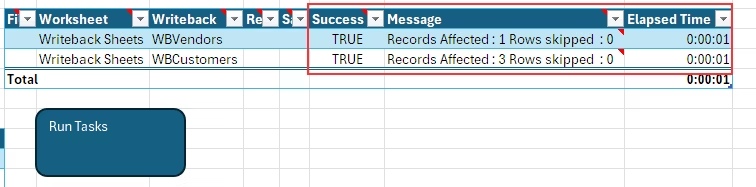
Conclusion
This is a simple option, but you may find it useful. The writeback can be from other sheets, even from other workbooks. Please try doing it to find the method that makes your work more efficient.