
Preparing test data
Introduction
This post shows which attribute needs to be set for preparing test data.
Practices
Use the existing Foundry definition for the post “”.
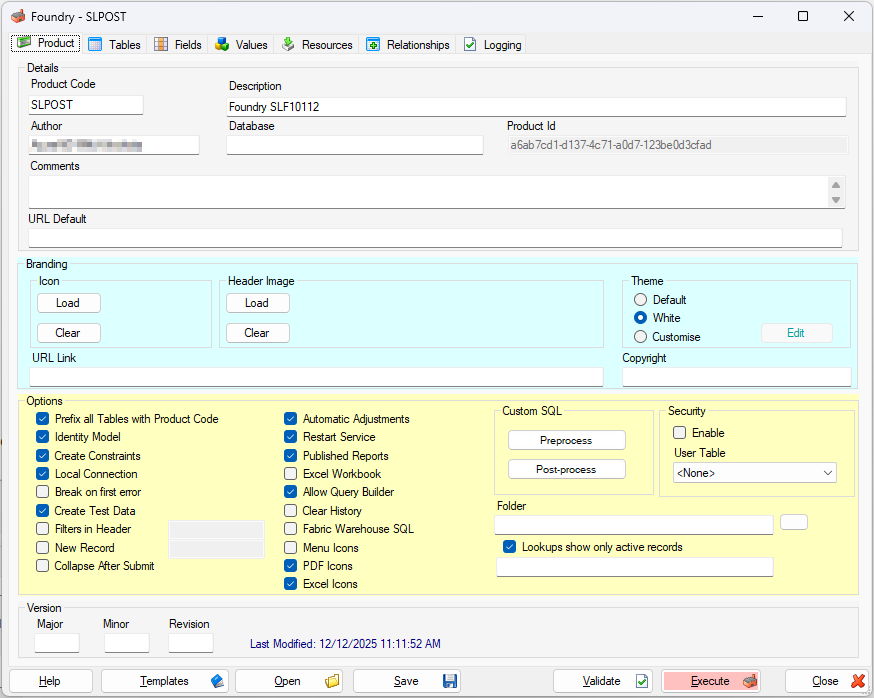
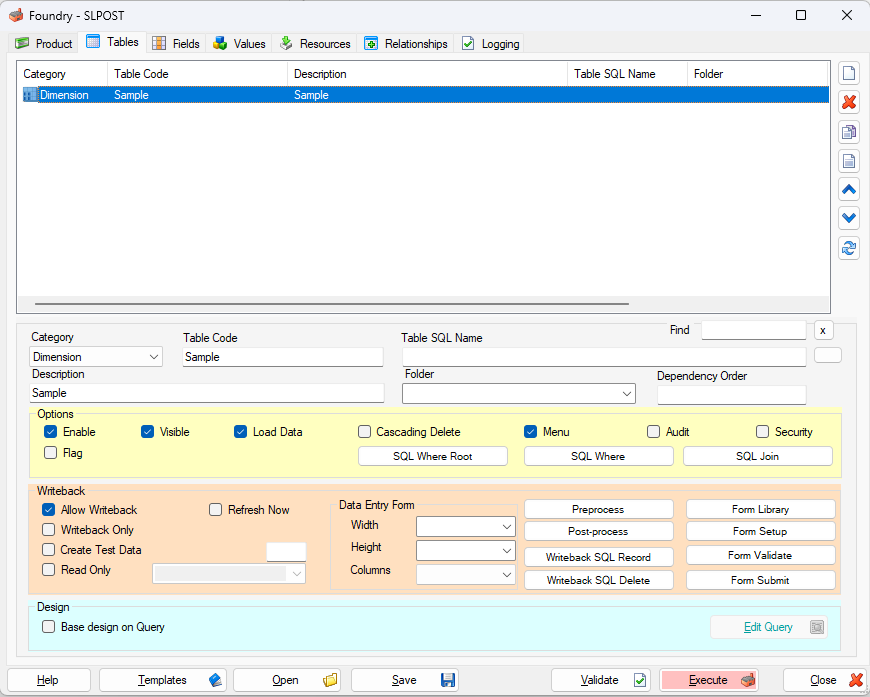
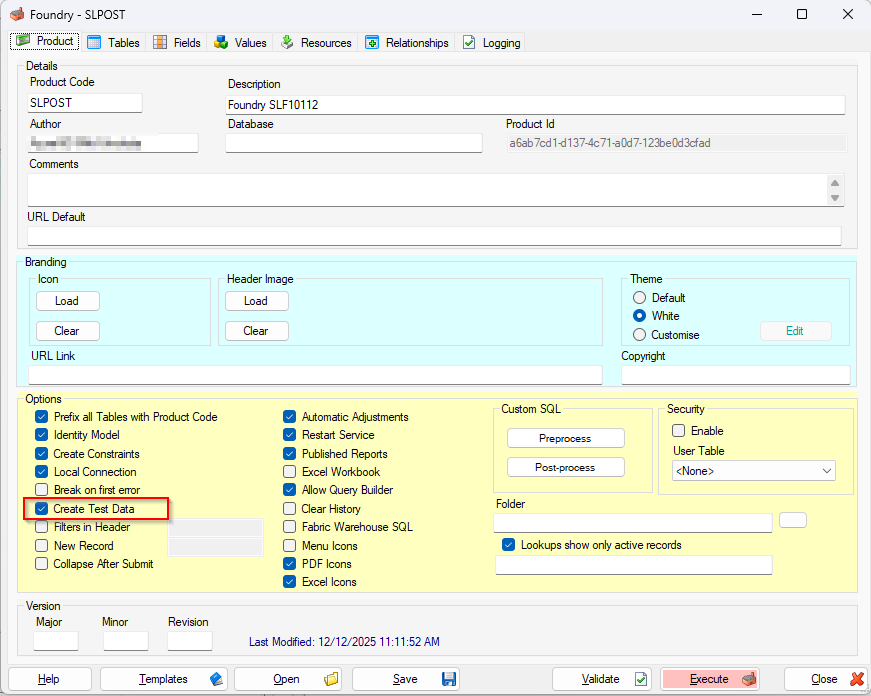
Creating Test Data
Make sure the option “Create Test Data” on the Product tab is selected.
Also select this option “Create Test Data” on Tables tab as well.
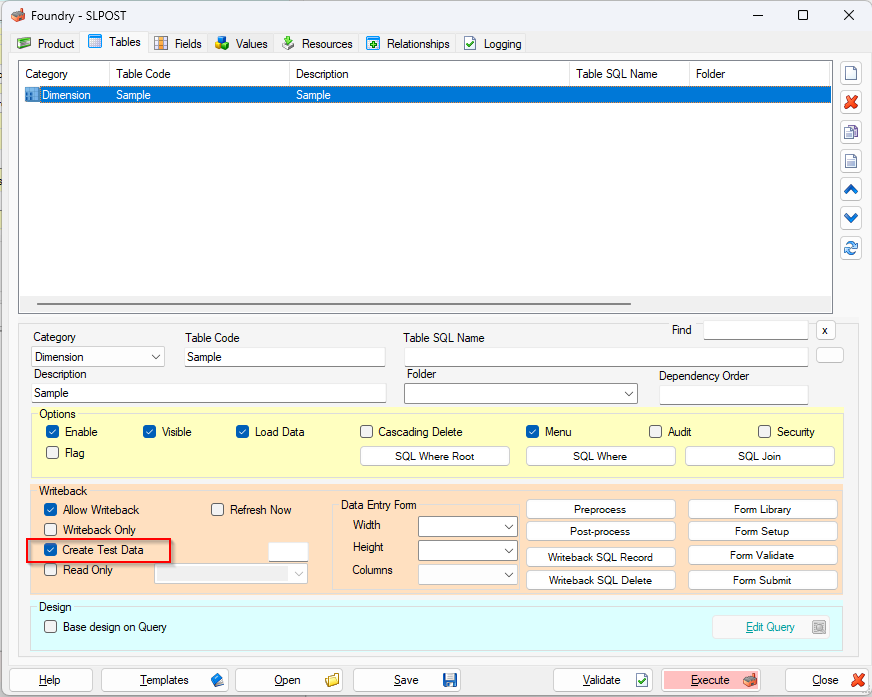
If you do not select “Create Test Data” on the Tables tab, no test data will be created, regardless of whether it is selected on the Product tab.
Executing the definition
It can be done with Execute button. Before do it, please save the definition first.
Click “Save” button to save it. The file extension is “.fdy“.
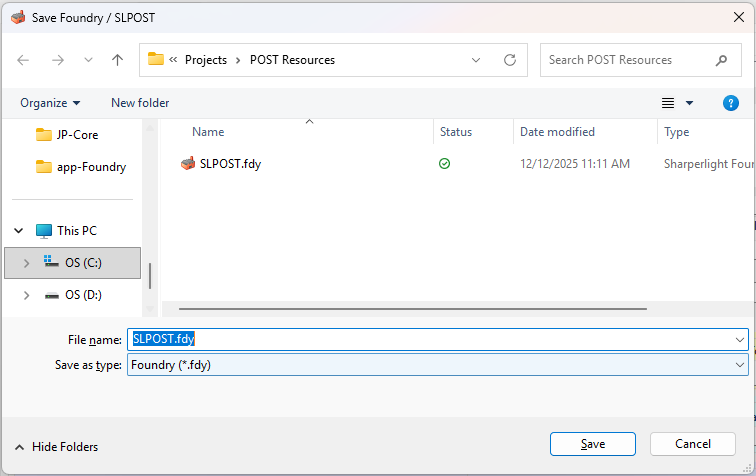
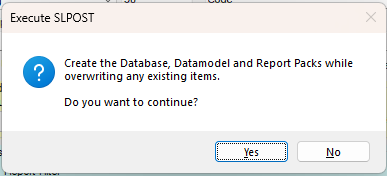
Click “Execute” button to execute it.
The confirmation dialog is displayed. Click “Yes” to proceed.
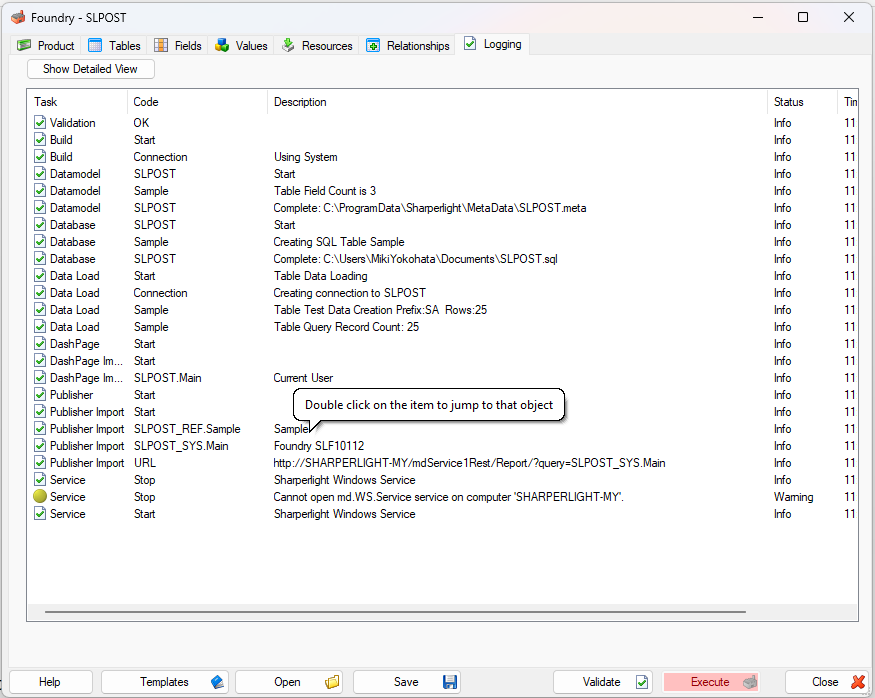
The logs are displayed while it is being executed.
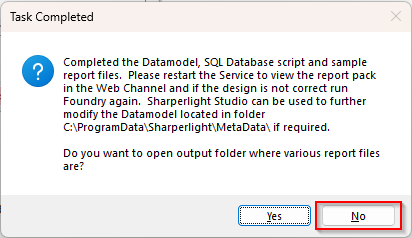
When it finishes, the final prompt message is displayed, and clock “No” to complete.
At the same time, the main menu page is displayed in your browser.
Sometimes it doesn’t display properly at first — just restart the Sharperlight service and it will be visible.
Running Foundry as Administrator prevents this problem.
The datamodel and published reports are saved to the Sharperlight instance you are currently using (the same one where Foundry is open).
The database is created on the same database server that hosts the Sharperlight System database.
Verification
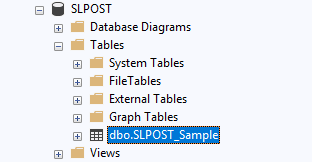
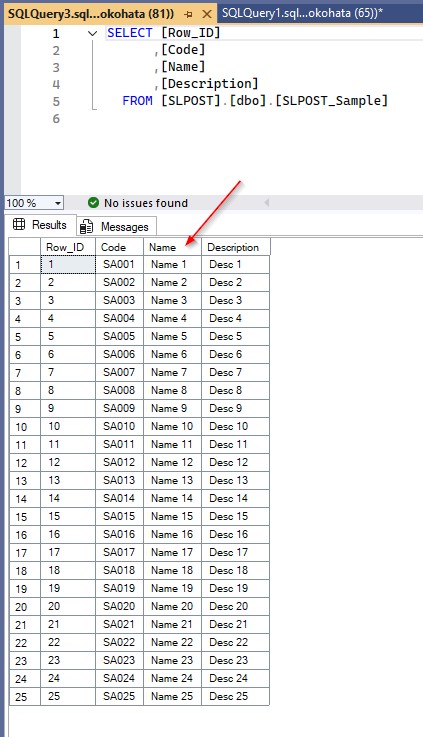
Open the database and query the table “SLPOST_Sample”.
You can see some test data being created
Afterword
I think that this is just a small thing on using Foundry for your business but it worth to know.