Writeback Setup – SAP Business One
SAP Business One writeback requires that Sharperlight be setup in a very specific manner so that it may pass the data through the SAP API DI library. Normally you would have just the Application Server setup with the SAP DI API library and Sharperlight Windows Service and then the Client PCs would remote connect to the App Server. This means the Client PCs do not need the SAP DI API library to be installed or even SAP for that matter.
Currently SAP API DI library Versions 8.8, 8.9, 9.0, 9.1, 9.2 and 9.3 are supported. This includes the new 64bit version of the SAP DI API library and where possible it is highly recommended that the 64bit version be used as it avoids the complications of the special installs and memory limitations of the 32bit version.
If the 32bit version SAP DI API library is your only option then that means a special 32bit version of the Sharperlight install on the App Server is also required. So it’s far better to install the 64bit version of the SAP DI API library as it has less memory restrictions and complications. When the version 9.x 64bit SAP DI API library is installed then the normal Sharperlight install may be used on both Client and App Server while with 32bit you will need the special 32bit version of Sharperlight on the App Server but the normal install for the Client installs.
The following are the install procedures where there is a central Sharperlight Application Server and many Clients
Downloads
Datamodel / Tester Application
Application Server
1) Install the latest Sharperlight version on the Application Server that has the SAP DI API Library installed.
2) Install the SAP Business One Datamodel on the Application Server using the Datamodel Installer
3) Use Client Setup to set the Database Connections and test the connection (DO NOT use localhost in the Server Name)
4) Use Site Setup to set the Writeback Settings and User Security
5) Start the Sharperlight Service
6) Use the Writeback Tester Applications to see if a Connection to SAP DI API is working
7) If the Tester shows a ActiveX error, select the Version and click the Register DLL button. (Restart the Service when working)
Client PC
1) Install the latest version of Sharperlight
2) In Client Setup disable Local Connections and Enable a Remote Connection to the Application Server
3) Test the Writeback in Excel (Recommend Price List as this does not have many columns)
Installation – How to install and setup a Application Server and Clients
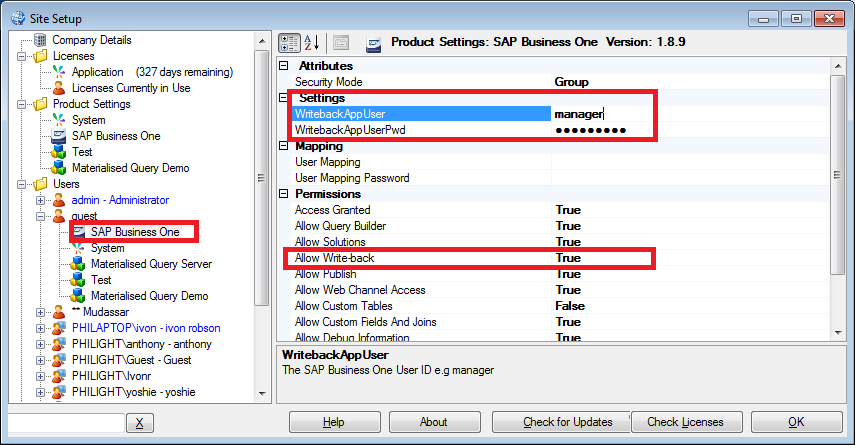
Site Setup – Product Settings – Set the Version and Database User Account details to use when connecting via SAP DI API to the Database

Site Setup – Users – Set the SAP Applicattion user details to use when connecting to SAP DI API
Set the SAP Application user name and possible and also remember to set the Allow Writeback flag to true
This can be done at a user level or group level
Tester App – Allows you to test the Connection details and setup to SAP DI API
Errors:
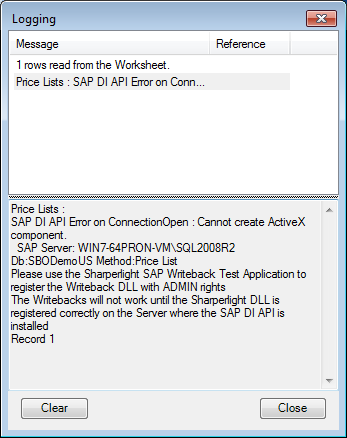
1) If the connection fails then with a ActiveX error, please select the version use the Register Writeback DLL with admin rights
2) Try and avoid localhost for the Database Server name – Try and make the server named used in SAP
3) If is import to get the correct SAP DI API version
If you have changed the details, go back into Site Setup and mirror the settings there and restart the Windows Sharperlight Service

Test the Writeback by using Excel
It is recommended to use Price List as this is the simplest writeback with only a few fields

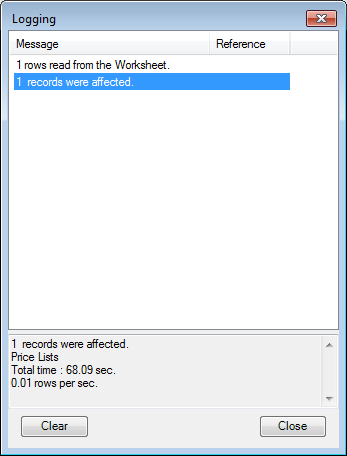
Test was successful – Log message
Test failed – Log message
Error messages can mean a number of things
1) SAP DI API data vaidation error
2) SAP DI API Connection details are invalid – (Site Setup)
3) SAP DI API version is incorrect or the DLL is not registered (Site Setup and Tester App)