
User Permissions Report
Introduction
This is one of the management tools provided by Sharperlight and can be used to review permissions for all users. There are three ways to access the tool: “Site Setup,” “Web Channel Index Page,” and “Query Builder.”
Site Setup
It can be access from the right-click menu. The Site Setup can be accessed by Admin user only so the user can see all user information.

It displays user information in a grid.
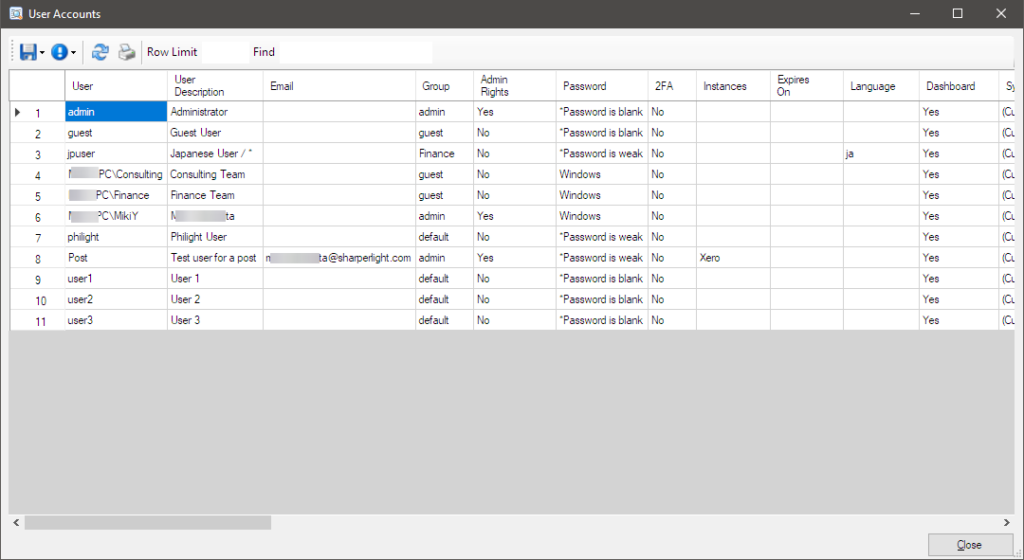
- User: This is the username.
- User Description: This shows the user’s description.
- Email: The email address configured for the user.
- Group: The user group to which the user belongs.
- Admin Rights: This indicates whether the user has admin rights or not
- Password: This indicates whether a password is set or not, along with its status
- 2FA: This shows whether Two-factor authentication (2FA) is configured or not
- Instances: This displays the settings for Instance Access Restrictions
- Expires On: The date for the property, “User Account expires on”
- Language: This shows what the default language is
- Dashboard: This indicates the permission to allow Web channel dashboard
Web Channel
User Permissions Report can also be seen on the main Index page.
Admin accounts can review permissions for all users while other accounts will only see their own account details.

Query Builder
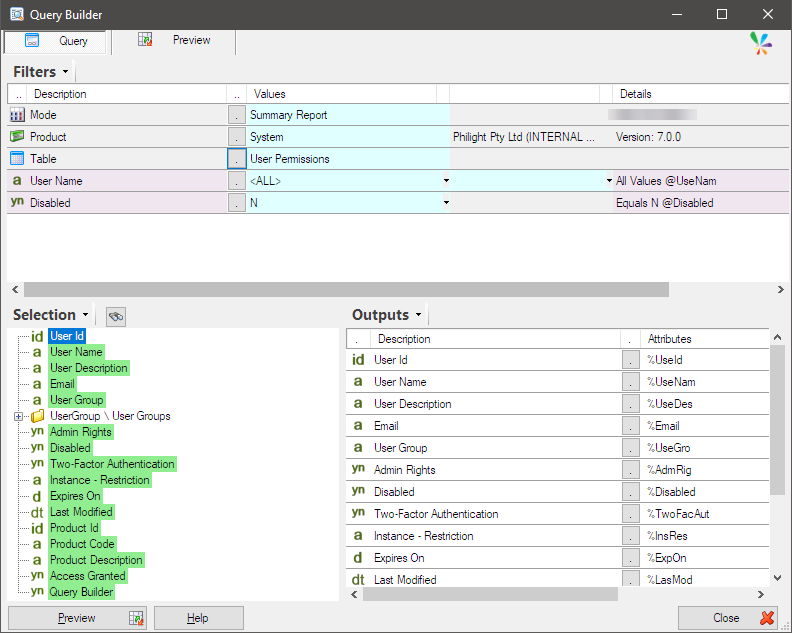
It gives us to query over User Permissions Table.
Admin accounts can review permissions for all users while other accounts will only see their own account details.
This is useful when report of user access permissions is required by a person who is administrating the application.


Afterword
We hope this will help you (the administrator) run your business smoothly.