
Expression: Switch
Introduction
This post will explain the most commonly used statement: Switch in an expression.
Practices
Query Definition
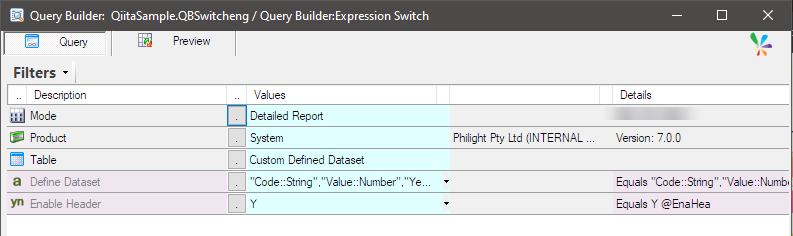
A simple query was prepared here and it uses Custom Defined Dataset.
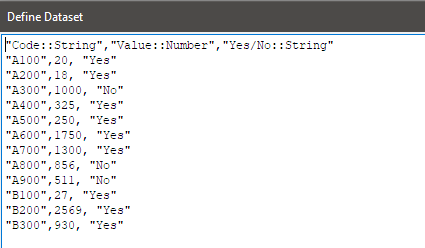
The dataset defined as a comma separated list is like this.
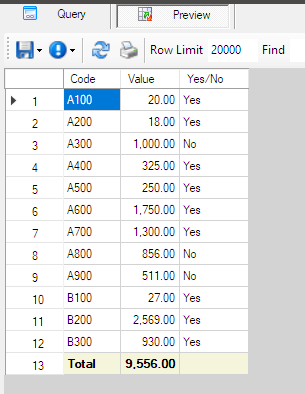
This is the output definition of the query.

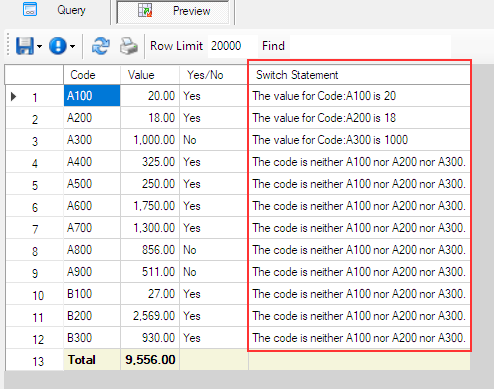
This is the preview of the query.
Creating Switch Expression
Add an expression and use the Switch statement so that the template is inserted.
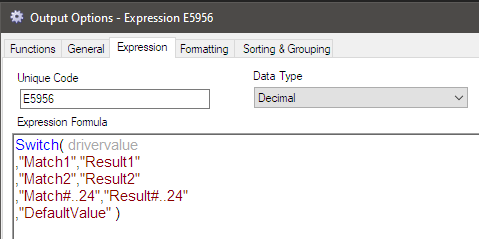
Specify the reference name of the target output column you want to evaluate where ‘drivervalue’ is shown, and then specify the exact values you want to check at ‘Match1’, ‘Match2’, and so on.
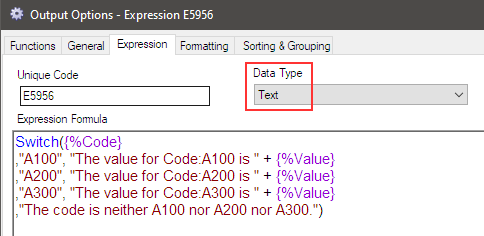
This time, I specify the ‘Code’ column as ‘drivervalue’, with A100, A200, and A300 as the code values to check. It will display the corresponding value with a text message. Additionally, I have set a default message for when the code does not match any of the specified values.
The Data Type must be Text since it outputs a text message.
The preview shows that the expression worked and handled the scenario correctly.
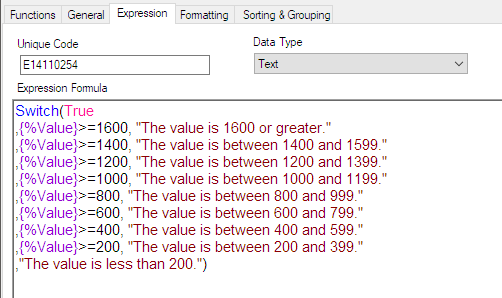
Another way to use it is by setting TRUE as ‘drivervalue’, with formulas specified for ‘Match1’, ‘Match2’, and so on.
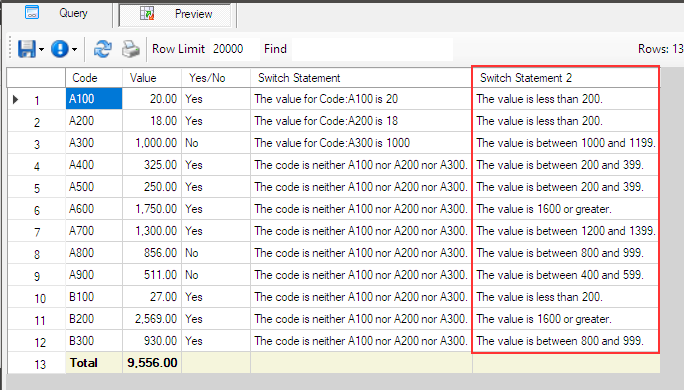
and its result.
Afterword
I believe the Switch statement is one of the most frequently used statements. I hope you will master it and create the reports you need for your business.